
How to Cancel Hatch Subscription in 2026? [Hatch+ Guide]

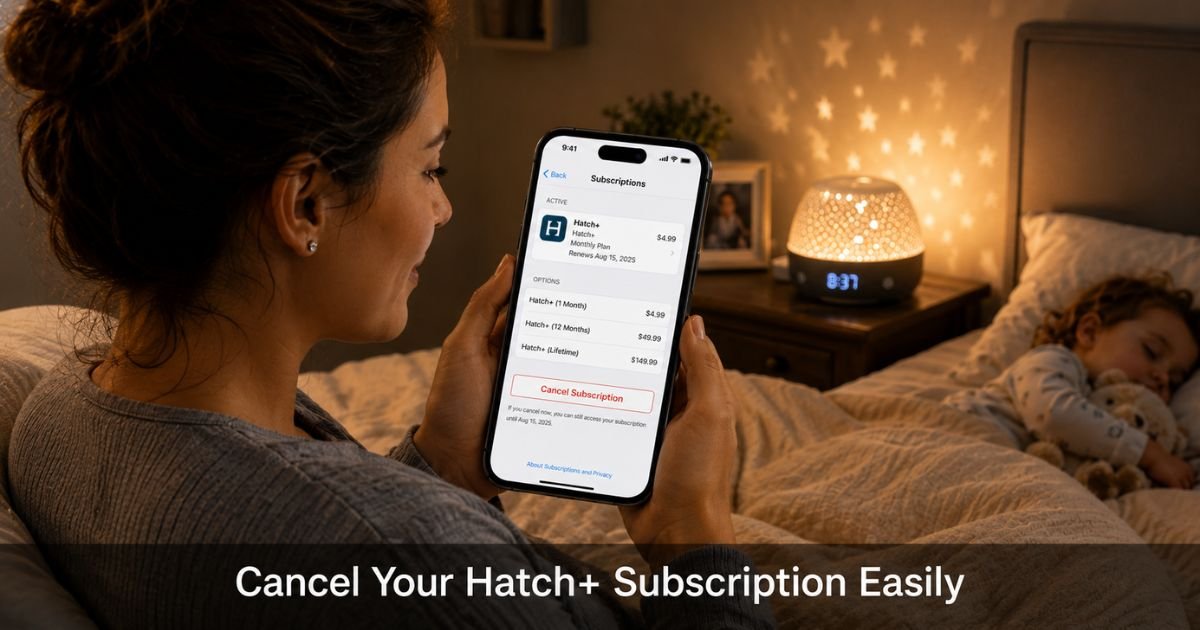
You bought a Hatch Rest or Restore to help your little one sleep better, started the free trial of Hatch+, and now you are seeing monthly charges. You are not alone.
Plenty of parents end up with an active Hatch subscription they no longer want or need. The good news is you can cancel Hatch subscription quickly once you know where it is managed.
This guide gives you the exact steps for every possible way Hatch+ is billed, whether through the website, iPhone, or Android. You will also learn what happens after you cancel and how to request a refund if you act fast.
What Is Hatch+ and Why Do People Cancel It?
Hatch+ is the premium subscription for Hatch sleep devices. It unlocks extra sleep stories, meditations, advanced soundscapes, and expert content marked with a star in the app.
The base features on your Hatch Rest or Restore still work without it. Many families cancel because:
- The free trial turned into a paid plan they forgot about
- They only needed the basic sounds and routines
- They want to save the monthly fee
- They are returning or no longer using the device
Knowing this helps you decide if canceling Hatch subscription makes sense for your family.
First Step: Check Where Your Hatch Subscription Is Managed
Before you cancel, confirm how you are being billed. This saves time and frustration.
- Go to www.hatch.co/my-hatch and log in with the email tied to your device.
- Or open the Hatch Sleep app and look for subscription details in your account settings.
- Check your email for the original welcome or trial confirmation email. It usually says whether you signed up through Hatch.co, Apple, or Google.
Once you know the source, follow the matching steps below.
How to Cancel Hatch Subscription on the Hatch.co Website
If your subscription is managed directly by Hatch:
- Visit hatch.co and click “My Account” in the top right.
- Log in with your account email and password.
- Click the blue “Manage” button next to your Hatch+ membership.
- Follow the prompts to cancel your subscription.
You should receive an immediate confirmation email. Save it for your records.
How to Cancel Hatch Subscription on iPhone or iPad (Apple App Store)
Most Hatch+ subscriptions run through Apple. You must cancel through your phone settings, not inside the Hatch app.
- Open the Settings app on your iPhone or iPad.
- Tap your name at the very top.
- Tap Subscriptions.
- Tap Hatch+ in the list.
- Scroll down and tap Cancel Subscription.
- Confirm your choice when prompted.
If you already see an expiration date in red, the subscription is already canceled and will end on that date.
How to Cancel Hatch Subscription on Android (Google Play)
- Open the Google Play Store app.
- Tap your profile icon in the top right.
- Tap Payments & subscriptions > Subscriptions.
- Select Hatch+.
- Tap Cancel subscription and follow the on-screen instructions.
Google will show you the exact date your access ends.
Pro Tip: Take a screenshot of the cancellation confirmation screen on whatever device you use. This simple step gives you proof if a charge appears later or you need to request a refund.
Real-Life Example
A mom of a 2-year-old in Austin, bought a Hatch Rest to help with bedtime routines. She started the free Hatch+ trial for the extra stories. Life got busy, and she completely forgot about it until a $9.99 charge hit her card.
She first tried canceling inside the Hatch app but found no option. After checking her email, she realized it was billed through Apple.
She followed the iPhone Settings steps above, canceled in under two minutes, and received a confirmation that access would end at the end of the current period.
She also contacted Apple Support through the same Subscriptions screen and received a full refund for the most recent charge because she acted quickly.
What Happens After You Cancel Hatch Subscription?
Once canceled, you lose access to all premium Hatch+ content (the starred sounds and stories). Your Hatch device will continue working normally with the free sounds, lights, and routines.
No need to delete the app or reset your device. Everything stays connected.
Common Mistake: Searching for a cancel button inside the Hatch Sleep app. The app does not control billing when your subscription comes from Apple or Google. Always go through your phone’s Settings or the Google Play Store instead. Trying the wrong place wastes time and can lead to another month of charges.
Hatch+ Cancellation and Refund Quick Reference
Use this table to choose the fastest path:
Hatch+ Cancellation Methods Compared
| Where You Bought It | How to Cancel | Who Handles Refunds | Best Tip |
|---|---|---|---|
| Hatch.co website | Log in → My Account → Manage button | Contact Hatch support | Ask for refund in the same message |
| Apple App Store (iPhone) | Settings → Apple ID → Subscriptions → Cancel | Apple Support | Request refund same day for best odds |
| Google Play (Android) | Play Store → Profile → Subscriptions → Cancel | Google Play Support | Check refund eligibility in the app |
How to Request a Refund for Hatch Subscription
Refunds depend on where you subscribed:
- Apple or Google: Use the same Subscriptions screen or contact their support directly. Apple and Google sometimes approve refunds for recent accidental charges.
- Direct through Hatch.co: Message Hatch support through their website chat or help form. Explain your situation politely and include your order details. They review case by case.
Act as soon as you notice the charge. The sooner you request, the higher your chances of success.
Protecting Yourself from Future Hatch Charges
After you cancel Hatch subscription, do these two quick things:
- Check your bank or card statement for the next 30 days.
- Set a phone reminder one week before any future trial or subscription renewal dates for other services.
These small habits prevent surprise charges from any company.
FAQs About How to Cancel Hatch Subscription
Q: How do I cancel my Hatch subscription if I can’t find it in the app?
Check your email or go to www.hatch.co/my-hatch to see where it is billed. Then cancel through Apple Settings, Google Play, or the Hatch website depending on the source. The Hatch app itself does not have a cancel button for most subscriptions.
Q: Will I still be able to use my Hatch device after canceling Hatch+?
Yes. All the basic sounds, lights, routines, and alarms continue to work. You only lose access to the extra premium stories and sounds that come with Hatch+.
Q: Can I get a refund after I cancel my Hatch subscription?
It depends on how recently you were charged and where you subscribed. Apple and Google sometimes approve refunds through their support. If you subscribed directly through Hatch, reach out to their support team and ask. The faster you request, the better your chances.
Conclusion
Canceling your Hatch subscription is straightforward once you know whether it runs through Apple, Google, or Hatch directly. Start by checking your account at hatch.co/my-hatch or your phone’s subscription settings today. Follow the exact steps for your situation, take screenshots of the confirmation, and monitor your statement for the next month.
You can keep your Hatch device and still enjoy the free features without the extra monthly cost. Many parents have successfully stopped their Hatch+ charges this way. You can too, starting right now with the method that matches how you signed up.
Disclaimer: This content is for informational and educational purposes only and does not constitute professional, financial, legal, or medical advice. The information provided may not apply to your specific situation. Always consult a qualified professional for personalized guidance.


