
How to Cancel LinkedIn Premium Subscription? [Step by Step]

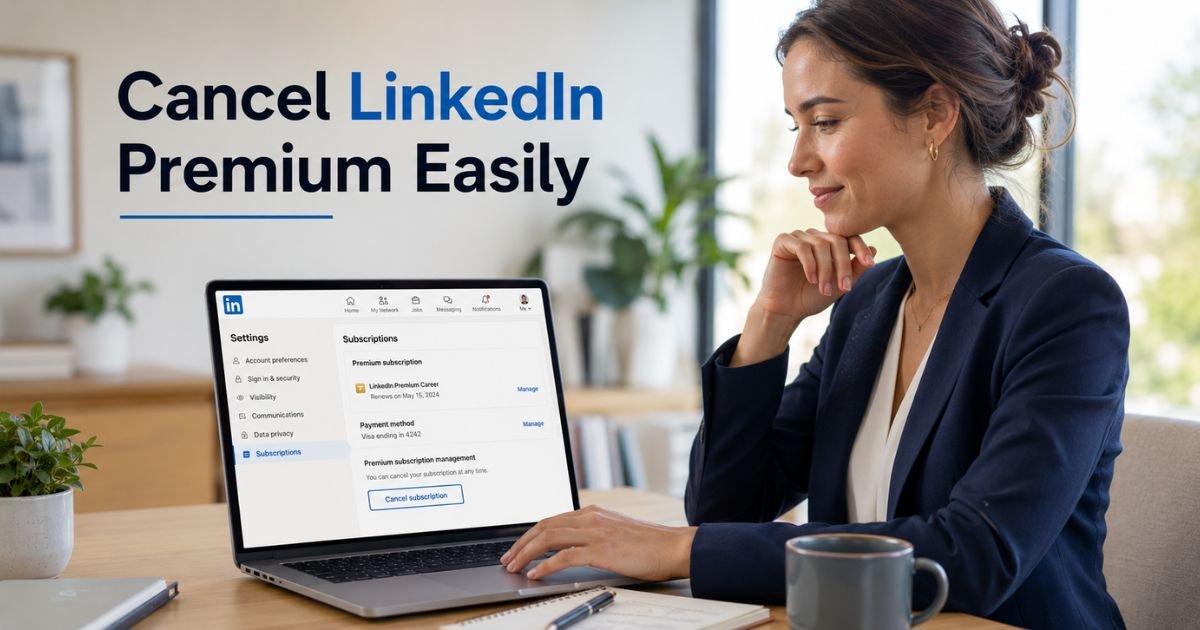
Have you been using LinkedIn Premium for job searching, networking, or lead generation but now feel it’s time to cancel? Many professionals subscribe during a job hunt or career push, then later decide the monthly cost no longer fits their needs.
The process to cancel your LinkedIn Premium subscription is straightforward once you know where to look. The exact steps can vary slightly depending on whether you signed up directly through LinkedIn or through Apple or Google.
You’ll discover exactly how to cancel LinkedIn Premium subscription on desktop and mobile, what happens to your account afterward, and smart tips to avoid common pitfalls. We’ll also cover what to expect with billing and access.
Why Professionals Cancel Their LinkedIn Premium Subscription
LinkedIn Premium offers valuable tools like InMail, advanced search, and profile insights. However, many users eventually cancel for practical reasons.
Here are some of the most common situations:
- You landed a new job and no longer need the job seeker features
- You want to reduce monthly expenses during a slower period
- You found the free version of LinkedIn sufficient for your current goals
- You’re taking a break from active networking or recruiting
You can cancel your LinkedIn Premium subscription at any time. There’s no long-term contract, and your account simply returns to the free Basic plan after cancellation.
How to Cancel LinkedIn Premium Subscription on Desktop
The most reliable way for most people is through the LinkedIn website on a computer.
Follow these steps:
- Log into your LinkedIn account at linkedin.com.
- Click the Me icon at the top of the homepage.
- Select Premium features from the dropdown menu.
- Click Manage subscription or go to Subscription details.
- Review your current plan and click the option to Cancel subscription.
- Select a reason for canceling and confirm your choice.
Once completed, your Premium benefits will continue until the end of your current billing period. After that date, you’ll automatically switch back to a free Basic account.
Canceling LinkedIn Premium on Mobile or Through App Stores
You can also manage cancellation on mobile, but the path depends on how you originally subscribed.
If you subscribed directly through LinkedIn:
- Open the LinkedIn app on Android and follow similar steps through Settings or Premium features.
- On iOS, it’s often easier to use the desktop site for full cancellation options.
If you subscribed through the Apple App Store:
- Go to your iPhone or iPad Settings
- Tap your name
- Tap Subscriptions
- Select LinkedIn Premium
- Tap Cancel Subscription
If you subscribed through Google Play:
- Open the Google Play Store
- Tap your profile
- Go to Payments & subscriptions > Subscriptions
- Find LinkedIn and select cancel
Always double-check your renewal date so you can cancel in time to avoid the next charge.
Pro Tip: Cancel at least a day or two before your billing date. This gives you a buffer and ensures you won’t be charged for another month you no longer want.
What Happens After You Cancel LinkedIn Premium
Your account does not lose Premium features immediately. You keep full access until the end of the paid billing cycle. After that, you return to the free Basic plan and lose access to Premium-only tools like unlimited InMail and advanced analytics.
Take Emily, a 31-year-old marketing manager. She subscribed to LinkedIn Premium while actively job hunting and found it helpful for reaching recruiters. Once she accepted a new role, she decided to cancel. She followed the desktop steps on a Friday. Her Premium features stayed active for the remaining two weeks of her billing period, giving her time to wrap up any final outreach. On the renewal date, billing stopped and her account smoothly returned to Basic.
You can resubscribe anytime in the future if your needs change again. Your profile and connections remain intact.
Common Mistake: Some users assume they can cancel by simply deleting the LinkedIn app or ignoring renewal emails. This won’t stop billing. You must actively go through the subscription management steps on the correct platform.
How to Cancel LinkedIn Premium by Purchase Method
Use this table to choose the right path for your situation:
LinkedIn Premium Cancellation Methods
| How You Subscribed | Best Place to Cancel | Key Notes |
|---|---|---|
| Directly through LinkedIn | LinkedIn website (Me > Premium features) | Most straightforward method |
| Apple App Store | iPhone Settings > Apple ID > Subscriptions | Must cancel via Apple |
| Google Play Store | Google Play app or LinkedIn settings | Can often cancel through either |
| Mobile web (iOS) | Desktop site recommended | iOS app may not show full cancel options |
This helps you avoid frustration and go straight to the correct screen.
FAQs About How to Cancel LinkedIn Premium Subscription
Q: How long after canceling LinkedIn Premium do I lose access to features?
You keep full Premium access until the end of your current billing period. Once that date passes, your account automatically switches to the free Basic plan and Premium features are no longer available.
Q: Can I get a refund if I cancel my LinkedIn Premium subscription early?
LinkedIn generally does not provide refunds or credits for partial billing periods. Your subscription simply ends at the close of the time you’ve already paid for.
Q: Can I reactivate LinkedIn Premium after I cancel my subscription?
Yes, you can resubscribe at any time. Simply go back to the Premium section on LinkedIn and choose the plan that fits your current needs. Your profile and network stay exactly as they are.
Conclusion
Canceling your LinkedIn Premium subscription is a simple, self-service process that puts you back in control. Whether you signed up directly or through an app store, the steps are clear and you keep access until the end of your paid period.
The main takeaways are to cancel through the correct platform, do it before your renewal date, and understand that your account will return to the free Basic version afterward.
If you’re ready to make the change, log into LinkedIn today and follow the path that matches how you originally subscribed. You’ll have everything sorted in just a few minutes and can focus on what matters most in your professional life.
Disclaimer: This content is for informational and educational purposes only and does not constitute professional, financial, legal, or medical advice. The information provided may not apply to your specific situation. Always consult a qualified professional for personalized guidance.


