
How to Cancel Philo Subscription in 2026? [Step by Step]

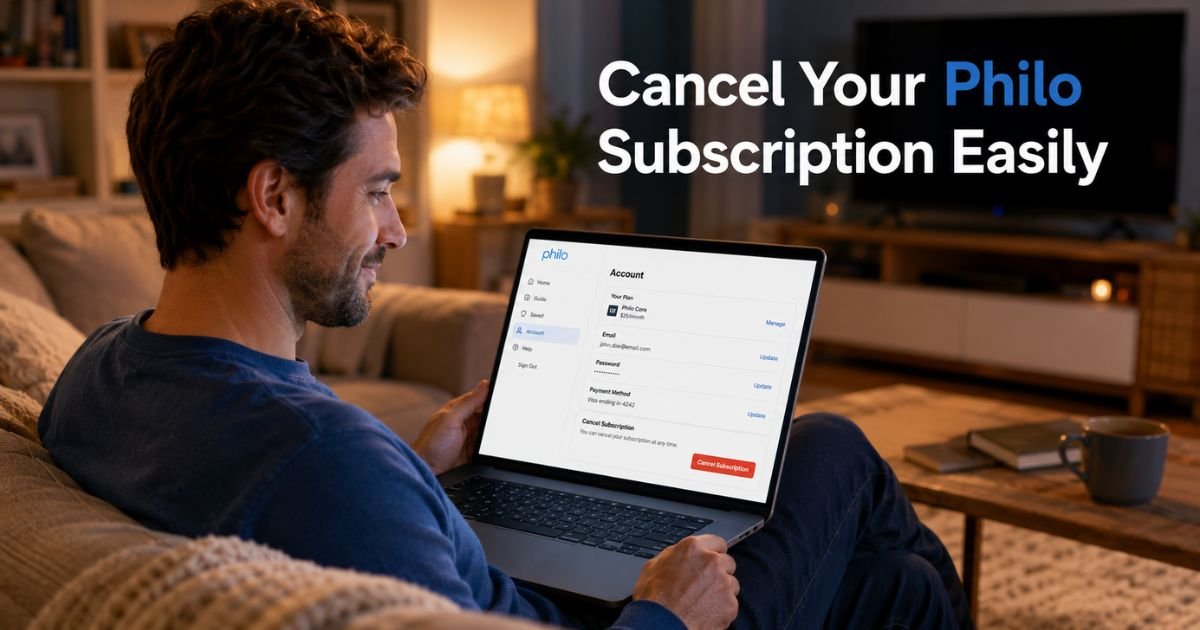
Have you been enjoying Philo’s affordable live TV but now want to cancel your subscription? Whether you’re switching to another streamer, tightening your budget, or simply no longer need the service, the process is designed to be simple.
The key is knowing exactly where you originally signed up. Canceling Philo works differently depending on whether you subscribed directly through their website or through Apple, Google, Roku, or another platform.
You’ll learn step-by-step how to cancel your Philo subscription in every common scenario. You’ll also discover what happens to your access after canceling, how to avoid mistakes, and answers to the questions people ask most.
Why People Decide to Cancel Their Philo Subscription
Philo offers one of the most budget-friendly ways to watch live TV with popular channels like AMC, HGTV, and Food Network. Still, many viewers eventually cancel for personal reasons.
Here are some of the most common situations:
- You found a different streaming service that better matches your viewing habits
- You’re moving or no longer need live TV
- You want to reduce monthly expenses
- You signed up for a free trial and decided it’s not the right fit
- You’re trying to simplify the number of subscriptions you manage
Philo makes canceling easy and has no long-term contracts. You can stop your subscription at any time.
How to Cancel Philo Subscription If You Signed Up Directly
If you created your account and subscribed directly on philo.com, follow these steps on the website:
- Go to philo.com and sign in to your account.
- Click your profile avatar in the top right corner.
- Select Account from the menu.
- Click Cancel my subscription.
- Click Continue to cancellation and choose a reason for canceling.
- Click Complete cancellation to confirm.
Your subscription will remain active until the end of your current billing cycle. You won’t be charged again after that date.
This is the most straightforward method when you manage billing directly with Philo.
Canceling Philo When Subscribed Through Apple, Google, Roku, or Other Platforms
Many people sign up for Philo through their phone, smart TV, or streaming device. In these cases, you must cancel through the platform where you originally subscribed.
If you subscribed through Apple (iPhone, iPad, or Apple TV):
- Open Settings on your device
- Tap your name at the top
- Tap Subscriptions
- Select Philo
- Tap Cancel Subscription and confirm
If you subscribed through Google Play (Android):
- Open the Google Play Store app
- Tap your profile icon
- Go to Payments & subscriptions > Subscriptions
- Find Philo and select Cancel subscription
If you subscribed through Roku:
- Go to your Roku account at roku.com or on your device
- Navigate to Subscriptions
- Select Philo and choose to cancel
For Amazon or other platforms: Log into that account’s subscription management section and cancel Philo from there.
Pro Tip: Always cancel at least 24 hours before your next billing date to avoid being charged for another month. You can check your renewal date in your account settings.
What Happens After You Cancel Your Philo Subscription
You keep full access to Philo until the end of your current billing period. There are no refunds or credits for the remaining days in most cases.
Take David, a 34-year-old sports fan who subscribed to Philo for the affordable live channels. After a few months, he decided to switch to a service with more sports options. He canceled directly through his Philo account on a Tuesday. His service stayed active for the rest of the month, giving him time to finish watching his favorite shows. On the renewal date, billing stopped automatically and he moved on without any issues.
Your watch history and profiles usually remain available until the subscription fully ends. After that, you’ll need to resubscribe if you want to return.
Common Mistake: Many people delete the Philo app and assume that cancels their subscription. Deleting the app does nothing. You must actively cancel through your account or the billing platform to stop charges.
Quick Reference: Where You Subscribed vs. How to Cancel Philo
Use this table to find the right method for your situation:
Where You Subscribed vs. How to Cancel Philo
| Subscription Source | Where to Cancel | Notes |
|---|---|---|
| Directly on philo.com | Philo website (Account > Cancel my subscription) | Easiest method |
| Apple App Store | iPhone/iPad Settings > Apple ID > Subscriptions | Must cancel through Apple |
| Google Play Store | Google Play app > Payments & subscriptions | Must cancel through Google |
| Roku | Roku account or device settings | Cancel via Roku platform |
| Amazon or other | That platform’s subscription management | Check the specific store or device |
This helps you avoid going to the wrong place and wondering why the option isn’t there.
FAQs About How to Cancel Philo Subscription
Q: How long can I watch Philo after I cancel my subscription?
You can continue watching Philo until the end of your current billing cycle. Once that period ends, access stops automatically and you won’t be charged again.
Q: Can I get a refund if I cancel my Philo subscription early?
Philo generally does not offer refunds or credits for partial billing periods. Your service simply continues until the end of the time you’ve already paid for.
Q: How do I cancel Philo if I subscribed through my smart TV or Roku?
If you signed up through Roku or another smart TV platform, you must cancel directly through that platform’s subscription settings, not inside the Philo app. Log into your Roku account or device settings and manage the Philo subscription from there.
Conclusion
Canceling your Philo subscription is a quick process once you know where you originally signed up. Whether you manage billing directly with Philo or through Apple, Google, or Roku, the steps are clear and you keep access until the end of your paid period.
The most important takeaways are to cancel through the correct platform, do it at least a day before renewal, and remember that deleting the app alone won’t stop your billing.
If you’re ready to make the change, check your account or device settings today and follow the steps that match how you subscribed. You’ll have everything wrapped up in just a few minutes and can move forward with confidence.
Disclaimer: This content is for informational and educational purposes only and does not constitute professional, financial, legal, or medical advice. The information provided may not apply to your specific situation. Always consult a qualified professional for personalized guidance.


