Disney Plus Account Cancel Subscription Guide [Step by Step]

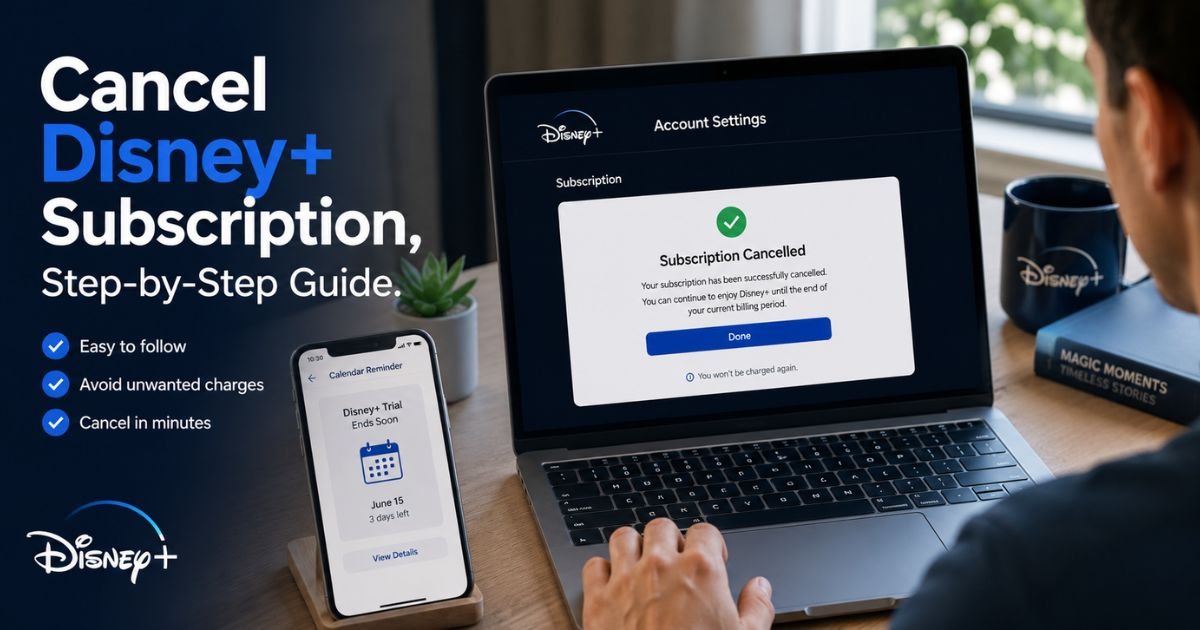
Ever looked at your bank statement and thought, “Wait, am I still paying for Disney+?” It happens more often than you’d think, especially if you signed up for one movie night, a new Marvel series, or a bundle deal and forgot about the renewal.
If you’re trying to disney plus account cancel subscription without getting lost in menus, this guide walks you through the process clearly.
You’ll learn how to cancel Disney Plus directly through Disney+, plus what to do if you subscribed through Apple, Google Play, Roku, Amazon, Hulu, or another billing partner.
Disney Plus Account Cancel Subscription: What to Know First
Before you cancel your Disney Plus subscription, check how your plan is billed. This one detail decides where you need to go.
You may be billed by:
- Disney+ directly
- Apple App Store
- Google Play
- Roku
- Amazon
- Hulu
- A cable, phone, or internet provider
- A Disney bundle partner
Disney’s official cancellation process says that if you’re billed directly by Disney+, you can cancel from your account through a computer or mobile browser. If you signed up through a third-party billing partner, Disney directs you to manage cancellation through that partner instead.
That’s why some users don’t see a “Cancel Subscription” button inside Disney+. It usually means Disney isn’t the company charging your card.
Quick Checklist Before You Cancel
Before starting, have these ready:
- Your Disney+ login email and password
- Access to the account owner profile
- Your latest billing statement
- The device or platform where you subscribed
- A few minutes before your next billing date
If you’re close to renewal, cancel as soon as possible. Waiting until the last hour can create stress, especially if your subscription is managed by a third party.
How to Cancel Disney Plus Subscription Directly Through Disney+
If Disney+ bills you directly, this is usually the fastest method. Use a web browser instead of relying only on the app, since account management options are often easier to find on desktop or mobile browser.
Steps to Cancel Disney+ on the Website
Follow these steps:
- Go to DisneyPlus.com in a computer or mobile browser.
- Log in to your Disney+ account.
- Select your Profile.
- Choose Account.
- Under Subscription, select your Disney+ subscription.
- Choose Cancel Subscription.
- Follow the prompts to confirm cancellation.
Disney’s help page lists these same core steps for users billed directly by Disney+.
After you cancel, you should still have access until the end of your current billing period. For example, if your monthly plan renews on the 20th and you cancel on the 10th, you can usually keep watching until the 20th.
Pro Tip: Take a screenshot of the cancellation confirmation page or save the confirmation email. If you’re charged again by mistake, that proof can make support conversations much easier.
How to Cancel Disney Plus on iPhone or iPad
If you signed up through the Apple App Store, you usually need to cancel through your Apple subscriptions, not directly through Disney+.
Cancel Disney+ Through Apple Subscriptions
Use these steps:
- Open the Settings app on your iPhone or iPad.
- Tap your name at the top.
- Tap Subscriptions.
- Select Disney+.
- Tap Cancel Subscription.
- Confirm your choice.
If Disney+ doesn’t appear in your Apple subscriptions, Apple may not be billing you. In that case, check your Disney+ account page or your credit card statement to find the billing source.
This is a common issue for families. One person may use Disney+, while another family member’s Apple ID handles the billing.
How to Cancel Disney Plus on Android or Google Play
If you subscribed through the Disney+ Android app and Google Play handles your payment, cancel from your Google account.
Cancel Disney+ Through Google Play
Here’s what to do:
- Open the Google Play Store.
- Tap your profile icon.
- Select Payments & subscriptions.
- Tap Subscriptions.
- Choose Disney+.
- Tap Cancel subscription.
- Follow the confirmation steps.
Make sure you’re signed in to the same Google account you used when you subscribed. If you have multiple Gmail accounts, check each one.
How to Cancel Disney Plus Through Roku, Amazon, or Another Provider
Sometimes Disney+ is billed through a streaming device, marketplace, phone provider, or TV package. In that case, your Disney+ account may show your subscription, but the cancellation button may send you elsewhere.
| Billing Source | Where to Cancel | What to Check |
|---|---|---|
| Disney+ directly | DisneyPlus.com account page | Look under Subscription |
| Apple | iPhone, iPad, or Apple ID subscriptions | Use the Apple ID that started the plan |
| Google Play | Google Play subscriptions | Check all Google accounts |
| Roku | Roku account subscription settings | Check your Roku billing history |
| Amazon | Amazon memberships and subscriptions | Confirm the Amazon account used |
| Hulu bundle | Hulu account settings | Bundle plans may need Hulu support |
| Cable or phone provider | Provider account portal | Check your monthly provider bill |
Disney notes that third-party billed subscriptions must be managed through the billing partner, and steps may vary depending on that partner.
How to Find Who Bills You
If you’re not sure who bills you, check:
- Your bank or credit card statement
- Your Disney+ Account page
- Your email receipts
- Your Apple, Google, Roku, or Amazon subscription pages
- Your phone, internet, or cable provider bill
Look for billing names like Disney+, Apple, Google, Roku, Amazon, Hulu, Verizon, Spectrum, or another provider.
What Happens After You Cancel Disney+?
Canceling Disney+ usually stops future renewals. It does not always end access immediately.
In most cases, you can keep streaming until your current paid period ends. Disney’s cancellation information explains that access continues until the end of the current subscription term, though timing can depend on your plan, billing cycle, annual subscription, or promotional period.
That means:
- You won’t usually lose access the second you cancel.
- Your profiles may remain on the account.
- Your watch history may still be available if you resubscribe later.
- Your downloaded content may stop working after access ends.
- You may need to cancel add-ons or bundles separately.
This is also why canceling early can be smart. You can stop renewal now and still enjoy the remaining days you already paid for.
Can You Pause Disney+ Instead of Canceling?
If you only need a short break, pausing may be an option. Disney says certain monthly subscriptions billed by Disney+ may be eligible to pause. The pause takes effect on the first day of your next billing period, and you won’t be charged or have access during the pause.
Pausing can work well if:
- You’re traveling for a month.
- Your favorite show is between seasons.
- You want to cut costs temporarily.
- You plan to return soon.
- You don’t want to fully cancel your subscription.
However, not every plan can be paused. Bundle subscriptions and third-party billed plans may have different rules.
Real-World Example
Take a 37-year-old teacher who signed up for Disney+ during winter break. She planned to watch a few family movies with her kids, then cancel before school started again.
Two months later, she noticed another charge on her credit card. She logged in to Disney+ and couldn’t find the cancel button. At first, she thought the site was glitching.
Then she checked her email receipts and found the answer. She had subscribed through Apple on her iPhone. Once she opened her Apple subscriptions, Disney+ was listed there. She canceled it in less than two minutes and saved a screenshot of the confirmation.
The lesson? If you can’t cancel inside Disney+, don’t panic. The billing source is usually the missing piece.
Common Problems When Canceling Disney Plus
Even a simple cancellation can get confusing if the account was created months ago. Here are the issues users run into most often.
You Don’t See the Cancel Button
This usually means one of three things:
- Disney+ does not bill you directly.
- You’re logged into the wrong Disney+ account.
- Your subscription is part of a bundle or partner plan.
Check your bank statement and email receipts first. They often reveal the billing company faster than clicking through menus.
You Canceled, But Still Got Charged
This can happen if:
- You canceled after the renewal date.
- You canceled the wrong account.
- You canceled Disney+ but not the bundle.
- A third-party subscription is still active.
- The charge was already pending before cancellation.
If you have a confirmation email, contact the billing provider and ask them to review the charge.
Common Mistake: Don’t delete the Disney+ app and assume your subscription is canceled. Removing the app from your phone, TV, or tablet does not stop billing.
You Have a Disney Bundle
Disney bundles can be more complicated than a standalone Disney+ plan. If you have Disney+, Hulu, ESPN, or another bundled plan, canceling one part may not cancel everything.
Disney’s help information explains that canceling an original subscription may not automatically cancel a bundle, and canceling a bundle may leave an original Hulu, ESPN, or third-party billed subscription active at its current price and terms.
So if you have a bundle, review every active subscription before you assume billing has stopped.
How to Make Sure Your Disney+ Subscription Is Fully Canceled
After you finish the cancellation steps, spend two extra minutes checking your work. It can save you from another surprise charge.
Use this final checklist:
- Look for a confirmation screen
- Check your email for a cancellation notice
- Confirm the end date of access
- Review Apple, Google, Roku, Amazon, or Hulu subscriptions
- Check your next bank statement
- Set a calendar reminder before the next billing date
- Contact support if the subscription still appears active
If you’re canceling because of cost, you may also want to compare your streaming subscriptions once a month. Many people pay for two or three services they barely use.
Should You Delete Your Disney+ Account Too?
Canceling your Disney+ subscription and deleting your Disney+ account are not the same thing.
Canceling stops future subscription billing. Deleting your account may remove account access and personal information tied to the account, depending on Disney’s policies and your location. Disney notes that after canceling your subscription, you may also have the option to delete your Disney+ account.
You may want to delete your account if:
- You don’t plan to use Disney+ again.
- You want fewer unused accounts online.
- You’re cleaning up old streaming profiles.
- You’re concerned about account security.
But if you might resubscribe later, keeping the account may be more convenient.
FAQs About Disney Plus Account Cancel Subscription
Q: How do I cancel my Disney Plus account subscription if I forgot where I signed up?
Check your latest bank statement, email receipts, and subscription settings in Apple, Google Play, Roku, Amazon, and Hulu. If Disney+ bills you directly, cancel from DisneyPlus.com under Account and Subscription. If another company bills you, cancel through that provider’s subscription settings.
Q: Why can’t I find the cancel subscription button in my Disney Plus account?
The cancel button may not appear if your subscription is billed through a third party, such as Apple, Google Play, Roku, Amazon, Hulu, or a cable provider. Disney+ may show your plan details, but the actual cancellation must happen through the company that manages your billing.
Q: Will I get a refund after I cancel my Disney Plus subscription?
Usually, canceling stops the next renewal and lets you keep access until the current billing period ends. Refund rules can vary by billing provider, plan type, location, and promotional offer. If you believe you were charged incorrectly, contact the company that billed you and provide your cancellation confirmation.
Conclusion
Canceling Disney+ is usually simple once you know who handles your billing. If Disney bills you directly, go to DisneyPlus.com, open your Account page, select your subscription, and choose Cancel Subscription. If Apple, Google Play, Roku, Amazon, Hulu, or another provider bills you, cancel through that provider instead.
The most important step is confirming the billing source before you start. That prevents wasted time and helps you avoid another renewal. Also, remember that deleting the app does not cancel the plan.
If your goal is to disney plus account cancel subscription without stress, follow the right path, save your confirmation, and check your next statement.
A few careful minutes now can keep your streaming budget clean and under control.
Disclaimer: This content is for informational and educational purposes only and does not constitute professional, financial, legal, or medical advice. The information provided may not apply to your specific situation. Always consult a qualified professional for personalized guidance.