How to Cancel Photobucket Subscription Easily [Step by Step]

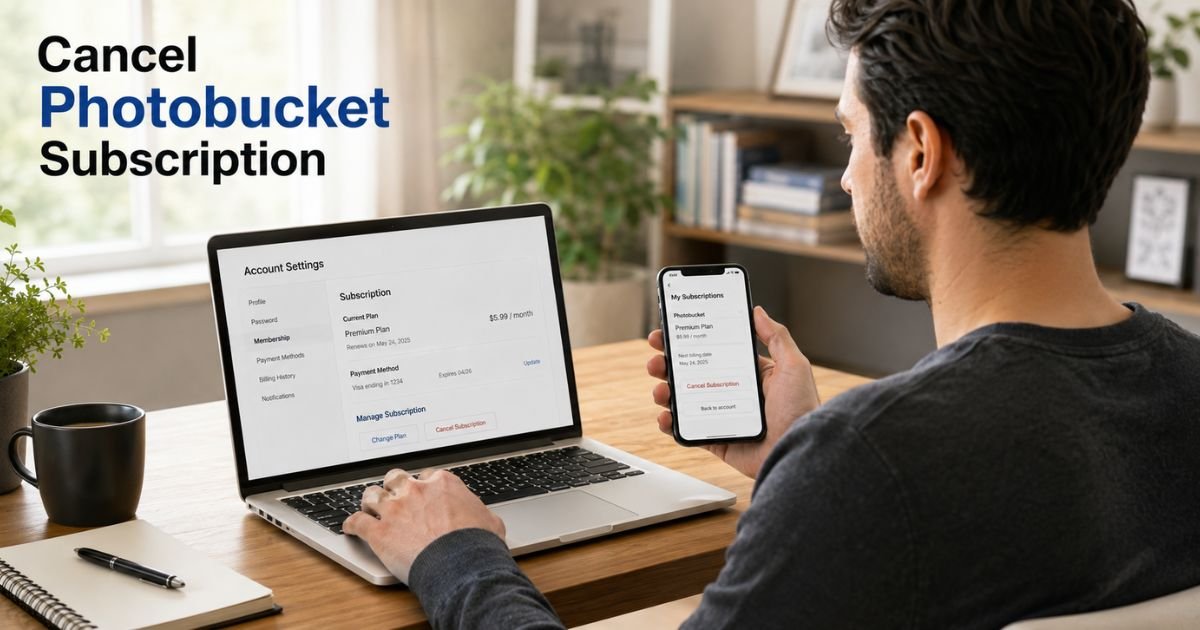
Trying to figure out how to cancel Photobucket subscription before your next billing date? Whether you’ve switched to another photo storage service, no longer need premium features, or simply want to cut monthly expenses, canceling your subscription is usually straightforward once you know where it was purchased.
This guide walks you through every cancellation method, including subscriptions purchased directly through Photobucket, Apple’s App Store, and Google Play.
Quick Answer
To cancel your Photobucket subscription, sign in to the account where you purchased the subscription. If you subscribed through the Photobucket website, cancel it from your account settings. If you subscribed through Apple or Google Play, you must cancel through those platforms. Cancel before your renewal date to avoid another billing cycle.
How to Cancel Photobucket Subscription
The cancellation process depends on where you originally signed up.
| Subscription Purchased Through | Where to Cancel |
|---|---|
| Photobucket website | Photobucket account settings |
| Apple App Store | iPhone or Apple subscription settings |
| Google Play | Google Play subscriptions |
Using the wrong platform won’t stop future renewals, so it’s important to identify where your subscription began.
Canceling Through the Photobucket Website
If you subscribed directly on the Photobucket website, follow these steps.
Step 1: Sign In
Log in to your Photobucket account using your email address and password.
Step 2: Open Your Account Settings
Navigate to your account profile or settings page.
Look for sections such as:
- Billing
- Subscription
- Membership
- Plan
The exact wording may change as the website is updated.
Step 3: Locate Your Active Plan
Review your current subscription details, including:
- Plan type
- Renewal date
- Billing frequency
- Payment method
Confirm you’re viewing the correct account if you have multiple email addresses.
Step 4: Choose Cancel Subscription
Select the cancellation option and follow the on-screen prompts.
Some services may ask why you’re leaving or present offers to keep your subscription. Complete every confirmation screen until cancellation is finalized.
Step 5: Save Your Confirmation
Once canceled, save:
- Confirmation email
- Cancellation reference number, if provided
- Screenshot of the confirmation page
Keeping proof of cancellation can help if a billing issue arises later.
Canceling Through Apple App Store
If you subscribed using your iPhone, iPad, or another Apple device, the subscription is managed by Apple.
Follow these steps:
- Open Settings on your iPhone or iPad.
- Tap your Apple ID at the top.
- Select Subscriptions.
- Find your Photobucket subscription.
- Tap Cancel Subscription.
- Confirm the cancellation.
Deleting the app does not cancel the subscription.
Canceling Through Google Play
If you subscribed through Google Play:
- Open the Google Play Store.
- Tap your profile picture.
- Select Payments & subscriptions.
- Tap Subscriptions.
- Choose your Photobucket subscription.
- Select Cancel subscription.
- Follow the prompts to confirm.
After cancellation, you’ll usually retain access until the current billing period ends.
What Happens After You Cancel?
Canceling your subscription doesn’t normally delete your account immediately.
Depending on your plan and Photobucket’s current policies, you may:
- Continue using premium features until your paid period expires.
- Revert to a free account, if available.
- Lose access to premium storage or advanced features after expiration.
Your photos and account status may depend on the service’s current terms, so review your account information before canceling.
Will You Receive a Refund?
Refund eligibility depends on:
- Where you purchased the subscription.
- The billing platform’s refund policy.
- How recently you were charged.
- Applicable consumer protection laws.
If your subscription renewed unexpectedly, contact the company that processed the payment as soon as possible.
In many cases:
- Website subscriptions are handled by Photobucket.
- Apple purchases are handled through Apple.
- Google Play purchases are managed by Google.
Submitting a refund request quickly generally provides the best chance of approval.
How to Confirm Your Subscription Is Really Canceled
Don’t assume the cancellation worked until you verify it.
Check for these signs:
- A cancellation confirmation email.
- Your subscription status shows “Canceled” or “Expires on.”
- Future renewal dates have been removed.
- No upcoming payment appears in your subscription settings.
Taking a few minutes to confirm can help prevent unexpected charges.
Common Problems When Canceling
You Can’t Find the Subscription
This usually means you’re signed into the wrong account or using the wrong platform.
Try checking:
- Another email address
- Apple subscriptions
- Google Play subscriptions
- Your payment history
The Cancel Button Is Missing
Some subscriptions remain active until a pending payment finishes processing.
If you don’t see the cancellation option, contact customer support before your renewal date.
You’re Still Being Charged
If billing continues after cancellation:
- Verify the cancellation confirmation.
- Check whether another account has an active subscription.
- Contact customer support.
- Reach out to your payment provider if the issue isn’t resolved.
Expert Tips Before Canceling
Before ending your subscription, consider these best practices:
- Download important photos or albums you want to keep.
- Verify your files have been backed up elsewhere.
- Save receipts for recent payments.
- Record your account email and billing details.
- Cancel at least one or two days before your renewal date to reduce the risk of another automatic charge.
Common Mistakes to Avoid
Many users encounter avoidable issues when canceling subscriptions.
Avoid these common mistakes:
- Deleting the app instead of canceling the subscription.
- Waiting until the renewal date.
- Canceling through the wrong platform.
- Forgetting to back up important images.
- Ignoring the cancellation confirmation email.
A little preparation can prevent frustration later.
Comparison of Cancellation Methods
| Method | Best For | Time Required |
|---|---|---|
| Photobucket website | Direct website subscriptions | About 5 minutes |
| Apple App Store | iPhone and iPad users | 2 to 3 minutes |
| Google Play | Android users | 2 to 3 minutes |
FAQs About How to Cancel Photobucket Subscription
Q: Can I cancel my Photobucket subscription at any time?
Yes. You can generally cancel whenever you want. However, to avoid another renewal charge, complete the cancellation before your next billing date.
Q: Will canceling delete my photos?
Not necessarily. Your account and stored content may remain available for a period, but access to premium features or storage limits could change after your paid subscription ends. Review your account details and back up important files before canceling.
Q: Can I reactivate my subscription later?
In most cases, yes. If you decide to return, you can usually purchase a new subscription using the same account, subject to the plans and pricing available at that time.
Q: Why am I still being billed after canceling?
This may happen if the cancellation wasn’t completed, you canceled the wrong account, or your subscription renews through Apple or Google Play instead of directly through Photobucket. Verify your subscription status and contact the appropriate billing provider if needed.
Conclusion
Knowing how to cancel Photobucket subscription can help you avoid unwanted renewal charges and ensure you keep access to your photos on your own terms.
The most important step is identifying where you originally purchased the subscription, since website, Apple, and Google Play subscriptions each have their own cancellation process.
Before canceling, back up any important images, confirm your cancellation, and keep a copy of the confirmation email. Taking these simple steps can make the process smooth and help prevent unexpected billing in the future.
Disclaimer: This article is for informational purposes only. Subscription management, billing policies, refund eligibility, and account features may change over time. Always refer to Photobucket’s official help resources and the billing platform that processed your subscription for the most current instructions and policies.