How to Cancel ReelShort Subscription on iPhone?

You open your phone and spot another charge from ReelShort. The short dramas hooked you at first, but now the monthly fee feels like money you could use elsewhere.
If you are looking for how to cancel ReelShort subscription on iPhone, you are in the right place. Apple manages these subscriptions, so the process lives right inside your iPhone Settings.
Canceling takes less than two minutes once you know the steps. You will keep access until the end of your current billing period, and no new charges will hit your card.
In this guide you will find the exact steps, what happens next, and simple tips to avoid common mistakes. Let’s walk through it together so you can take back control today.
How to Cancel ReelShort Subscription on iPhone Step by Step
Apple handles billing for ReelShort because it is an in-app purchase. That means you cancel through your device settings, not inside the app itself. Here is exactly what to do.
- Open the Settings app on your iPhone. Look for the gray gear icon on your home screen.
- Tap your name at the very top of the screen. This opens your Apple ID settings.
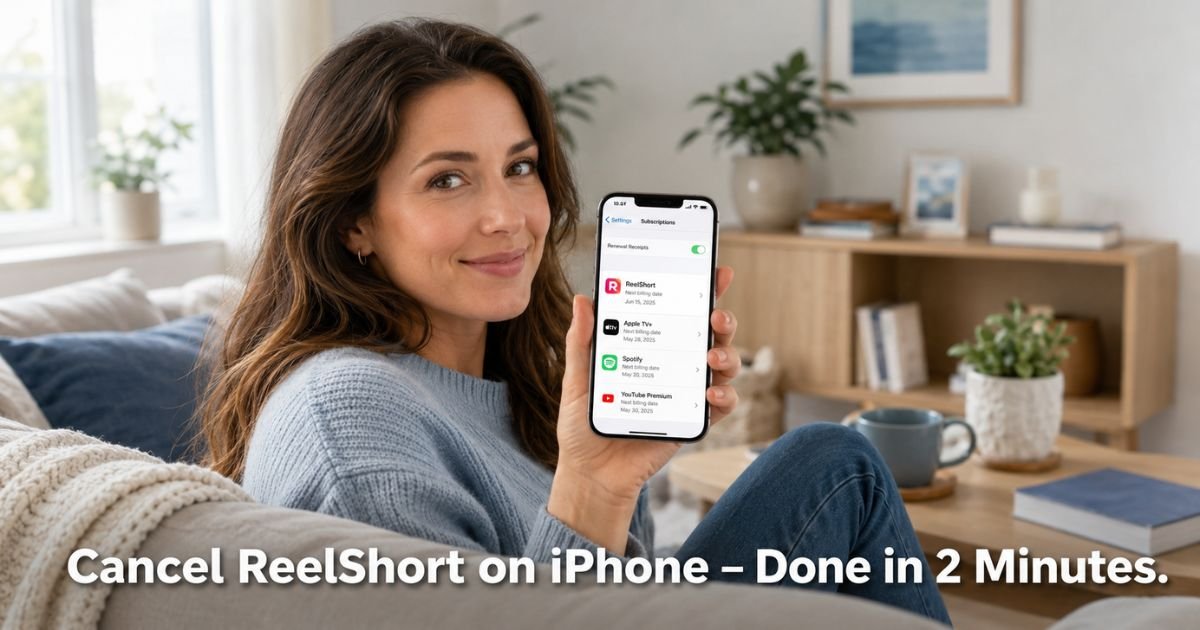
- Tap Subscriptions. You will see a list of every active subscription tied to this Apple ID.
- Scroll down and tap ReelShort.
- Tap Cancel Subscription near the bottom. You may need to scroll a little.
- Choose a reason if asked, then confirm your choice.
You will see a confirmation message once it is done. Apple also sends an email to the address on your account. Keep that email for your records.
What Happens After You Cancel ReelShort Subscription on iPhone
Canceling does not cut you off right away. You keep full access to your VIP content until the end of the current billing period. After that date, your account switches back to the free version.
Take Emily, a 29-year-old graphic designer. She signed up during a busy month and barely had time to watch. She followed the steps above on a Tuesday and received instant confirmation.
Her access stayed active for the rest of the billing cycle, and the next charge never appeared. Two weeks later she resubscribed when her schedule cleared up. The whole process felt simple and stress-free.
Pro Tip: Check your exact renewal date inside the ReelShort subscription details before you cancel. Knowing the date helps you time everything perfectly and avoids any surprise charges on your statement.
ReelShort App vs Apple Settings: What You Should Know
Some people try to cancel inside the ReelShort app by tapping the VIP banner and looking for “Manage Subscription.” The app shows your status and often links you to Apple’s page. It can feel convenient, but the actual cancellation still happens in your iPhone Settings.
Starting in Settings gives you the most direct and reliable path. You avoid extra clicks and see every subscription in one clean list.
Quick Reference: ReelShort Cancellation at a Glance
Table: Key Facts About Canceling Your ReelShort Subscription on iPhone
| What You Want to Know | The Details |
|---|---|
| Where to cancel | Settings > Your Name > Subscriptions > ReelShort |
| When charges stop | End of current billing period |
| Content access after cancel | Continues until period ends |
| Best time to cancel | At least 24 hours before renewal date |
| Refunds | Not automatic. Contact Apple Support if needed |
| Can you resubscribe later? | Yes, anytime through the app or Settings |
This quick view helps you see the full picture before you tap cancel.
Common Mistake: Using the wrong Apple ID. Many people have more than one account and cannot find ReelShort because they are signed into the wrong one. Always double-check the name at the top of Settings matches the Apple ID you used when you first subscribed.
Tips to Avoid Future Surprise Charges
- Turn on subscription notifications in Settings so you get a reminder a few days before renewal.
- Review your Subscriptions list every few months. It takes two minutes and often reveals apps you forgot about.
- If you share an Apple ID with family, check whether ReelShort appears under Family Sharing. The organizer may need to cancel it.
- Keep your payment method up to date so you never lose access by accident if you decide to resubscribe later.
FAQs About How to Cancel ReelShort Subscription on iPhone
Q: How do I cancel ReelShort subscription on iPhone if I cannot find it in my Subscriptions list?
First confirm you are signed into the correct Apple ID. Go to Settings and check the name at the top. If ReelShort still does not appear, it may have been purchased under a different account, through family sharing, or on another device. Try signing in with other Apple IDs you use or contact Apple Support for help locating the subscription.
Q: Will I lose access to my ReelShort content the moment I cancel on iPhone?
No. You keep full VIP access until the very end of your current billing period. After that date your account automatically moves to the free version. Your watch history, coins, and profile stay saved, so you can pick up right where you left off if you ever resubscribe.
Q: Can I get a refund after I cancel my ReelShort subscription on iPhone?
Apple does not automatically refund partial periods. If you recently subscribed or believe there was an error, you can request a refund through Apple’s report a problem page or by contacting Apple Support. Approval depends on your situation and Apple’s current policies. Acting quickly gives you the best chance of success.
Conclusion
You now have everything you need to cancel ReelShort subscription on iPhone with confidence. The steps are simple, the process is reversible, and you stay in control of your spending.
Canceling gives you breathing room when a subscription no longer fits your life. If you ever miss the short dramas, resubscribing takes just a tap.
Take a moment today to check your other app subscriptions too. Small clean-ups like this add up to real savings and peace of mind over time.
Disclaimer: This content is for informational and educational purposes only and does not constitute professional, financial, legal, or medical advice. The information provided may not apply to your specific situation. Always consult a qualified professional for personalized guidance.