How to Cancel Canva Subscription? [Step by Step]


Ever signed up for a Canva subscription, thinking it’d boost your design game, only to find it’s not quite what you need anymore? You’re not alone. Today, we’ll walk through how to cancel Canva subscription without the hassle. We’ll cover everything from the basics to refunds and alternatives.
Why You Might Want to Cancel Your Canva Subscription
Let’s face it, Canva is awesome for quick designs. But life changes. Maybe your project wrapped up, or you’re tightening your budget.
What if you’re overpaying for features you don’t use? Knowing when to cancel saves money and keeps things simple.
Common Reasons for Canceling
People cancel for various reasons. Budget cuts top the list. Others find they don’t need premium stock photos or magic resize anymore.
Some switch jobs and no longer design as much. Or perhaps the team plan feels too bulky for solo work. Whatever your story, it’s okay to reassess.
Benefits of Canceling or Downgrading
Canceling frees up cash for other tools. You still keep access to free Canva features, like basic templates and exports.
Downgrading to free means no monthly bills. Plus, your designs stay safe in your account. Ready to dive deeper?
Understanding Canva Subscription Types
Before you cancel, know your plan. Canva offers free, Pro, Teams, and Enterprise options.
Pro suits individuals with advanced needs. Teams works for groups sharing assets. Each has different billing.
Check your type in settings. This step avoids mix-ups.
Canva-Managed vs. Third-Party Subscriptions
Canva-managed plans bill directly from Canva. You subscribed on their site.
App Store or Google Play handles others if you signed up via mobile app. Cancellation differs here.
Mix them up, and you might still get charged. Always double-check your invoice source.
Step-by-Step Guide: How to Cancel Canva Subscription on Desktop
Ready to cancel? Start with the web version. It’s straightforward.
Log in at canva.com. Make sure it’s the right account.
Click your profile in the top corner. Select Settings from the menu.
Navigating to Billing and Plans
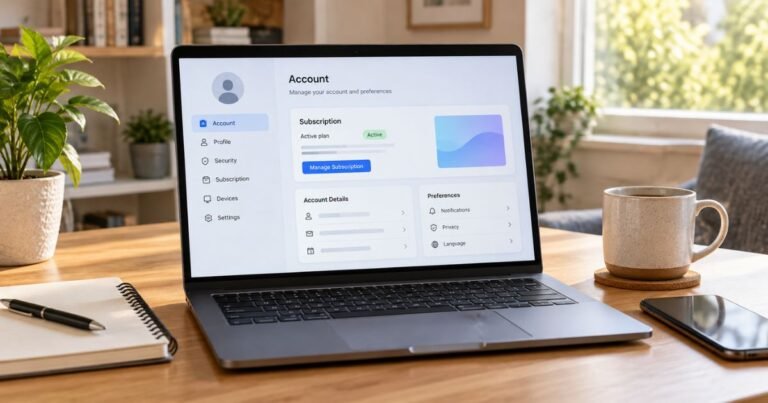
In Settings, find Billing & plans. It’s on the left sidebar.
See your active plan listed. Look for the three dots or cancel option next to it.
Click that. A menu pops up with Cancel plan.
Completing the Cancellation Process
Choose your reason. Canva asks to improve their service.
Hit Continue cancellation. Optionally, add more feedback.
Confirm with Cancel subscription. Done! You’ll get an email.
How to Cancel Canva Subscription on Mobile App
Mobile users, don’t worry. The process is similar but app-specific.
Open the Canva app. Tap your profile icon at the bottom.
Go to Account settings. Then Billing & teams.
For iOS Users (App Store)
If subscribed via App Store, exit Canva. Open your iPhone Settings.
Tap your name, then Subscriptions. Find Canva and cancel.
Apple handles it. No refunds through Canva.
For Android Users (Google Play)
On Android, open Google Play Store. Tap profile, then Payments & subscriptions.
Select Subscriptions. Tap Canva and cancel.
Uninstalling the app won’t stop billing. Always cancel properly.
Canceling Canva Pro vs. Canva Teams Subscription
Pro is easy for individuals. Teams needs owner or admin rights.
For Teams, log in as admin. Go to Billing & plans.
Cancel like Pro, but confirm team effects. Members lose premium access.
Special Notes for Teams and Enterprise
Enterprise plans might require support contact. Don’t assume self-cancel works.
If you’re a member, ask the owner to remove you. That way, you avoid charges.
Teams cancellation pauses collaboration features. Plan ahead.
Pausing Your Canva Subscription Instead of Canceling
Not ready to fully cancel? Pause it. This stops billing temporarily.
In Billing & plans, look for Pause option. Select duration, like 1-3 months.
Resume anytime. It’s perfect for short breaks, like vacations.
When to Pause vs. Cancel
Pause if you’ll return soon. Cancel for long-term stops.
Pausing keeps your setup intact. No need to rebuild brands or folders.
What Happens After You Cancel Canva Subscription
Cancellation doesn’t erase everything. You keep free access.
Paid features end at billing period close. Download designs before then.
Your account stays active. Upgrade later if needed.
Access to Designs and Features Post-Cancellation
All your creations remain. Edit with free tools.
Premium elements might watermark. But basics are fine.
Brand Kits persist. They’re ready if you resubscribe.
Canva Refund Policy: What You Need to Know
Refunds aren’t automatic. Canva reviews case by case.
If approved, expect 5-10 days for cards. PayPal is quicker.
App Store refunds go through Apple. Contact them directly.
How to Request a Refund
Contact Canva support. Provide invoice details.
Explain your situation. They might approve if recent.
For third-party, follow store policies. Patience helps.
Common Refund Scenarios
Recent sign-ups often qualify. Long-term users, less so.
If charged after cancel, check multiple accounts. Fix that first.
I once got a refund after accidental renewal. Polite emails work.
Troubleshooting Common Issues When Canceling
Stuck? Ensure logged in correctly. Wrong account causes problems.
Still charged? Search invoices. Use Canva’s transaction tool.
Contact support with details. They’re helpful.
If Cancellation Button Is Missing
Might be third-party sub. Cancel via store.
Or unpaid bills block it. Settle first.
Admin rights needed for teams. Ask your team lead.
Dealing with Multiple Accounts
Many have several. Check emails for charges.
Log into each. Cancel the right one.
Merge if possible. Keeps things tidy.
Alternatives to Canva After Cancellation
Canceled? Try free options. Adobe Express has similar tools.
Figma for collaboration. GIMP for advanced edits.
Each has pros. Pick based on needs.
Free Design Tools Comparison
Here’s a quick table:
| Tool | Key Features | Best For |
|---|---|---|
| Canva Free | Basic templates, exports | Beginners |
| Pixlr | Photo editing, layers | Quick edits |
| Inkscape | Vector graphics, free forever | Professionals |
These save money. Explore them.
Paid Alternatives Worth Considering
Visme for infographics. Crello (now VistaCreate) mimics Canva.
Pricing varies. Start with trials.
Tips for Managing Your Canva Account Better
Prevent future hassles. Review billing monthly.
Set reminders for renewals. Downgrade if underusing.
Use free features maximally. They’re powerful.
Avoiding Unwanted Renewals
Turn off auto-renew? Canva doesn’t have it. Cancel to stop.
Monitor emails. They notify before charges.
Budget wisely. Subscriptions add up fast.
Maximizing Free Canva Features
Free has tons. Custom sizes, text effects.
Upload own images. No need for premium stock.
Community templates help. Get creative.
FAQs About How to Cancel Canva Subscription
Q: Can I Get a Refund After Canceling My Canva Subscription?
Yes, but it’s not guaranteed. Canva reviews requests individually. For best chances, contact support soon after with your reasons.
Q: What If I’m Still Charged After Canceling Canva Subscription?
You might have multiple accounts. Check your invoices and log into the correct one to confirm cancellation. If issues persist, reach out to support.
Q: Can I Reactivate My Canva Subscription Later?
Absolutely. Just log in and upgrade anytime. Your designs and settings stay saved, making it easy to pick up where you left off.
Conclusion
Canceling your Canva subscription doesn’t have to be stressful. Follow the steps, and you’ll be set. Remember, it’s about what fits your needs now.
Whether pausing or switching tools, stay in control of your budget. Happy designing.
Disclaimer: This article provides general guidance based on available information. Processes may change, so always check Canva’s official site for the latest details. We’re not affiliated with Canva, and this isn’t financial advice.