How to Cancel Snapchat Plus Subscription? [Step by Step]

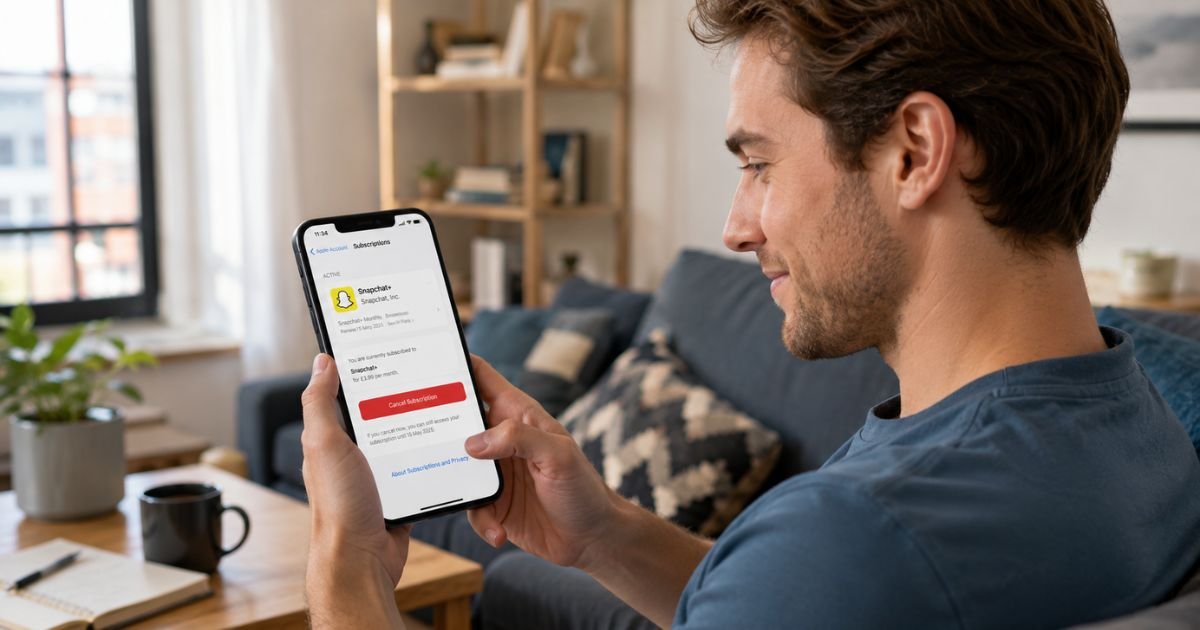
You signed up for Snapchat+ to enjoy the fun extras like custom app icons, story rewatch counts, and priority story replies. Those features felt fresh at first. Now the monthly charge shows up every cycle, and you are ready to turn it off.
Canceling your Snapchat Plus subscription is straightforward once you know where to go. The process depends on whether you subscribed through the App Store, Google Play, or directly on the web.
This guide shows you exactly how to cancel Snapchat Plus subscription on each platform so you can stop the payments without confusion.
Why Many People Cancel Their Snapchat+ Subscription
Snapchat+ adds playful customization options that some users love. Others find the cost adds up quickly, especially when they use the app less often or discover they do not need the extras.
Common reasons people decide to cancel include:
- The monthly or yearly fee no longer fits their budget.
- They signed up for a trial or promo and forgot to cancel in time.
- They rarely use the premium features like custom notification sounds or friend solar systems.
- They want to simplify recurring charges across all their apps.
Whatever your reason, you can cancel anytime. Your Snapchat+ benefits continue until the current billing period ends.
How to Cancel Snapchat Plus Subscription on iPhone
Most Snapchat+ subscriptions on iOS are billed through Apple. You must cancel through your Apple ID settings, not inside the Snapchat app.
Here is the exact process:
- Open the Settings app on your iPhone.
- Tap your name at the very top.
- Tap Subscriptions.
- Find and tap Snapchat+ or Snapchat Plus in the list.
- Scroll down and tap Cancel Subscription.
- Choose a reason if prompted, then confirm.
You will see a message confirming the end date of your access. Take a quick screenshot of this screen for your records.
Pro Tip: Cancel at least 24 hours before your renewal date if you are still in a trial period. Apple charges automatically if you wait until the final day.
How to Cancel Snapchat Plus Subscription on Android
Android users manage Snapchat+ through the Google Play Store.
Follow these steps:
- Open the Google Play Store app.
- Tap your profile icon in the top right corner.
- Select Payments & subscriptions.
- Tap Subscriptions.
- Find Snapchat+ and tap it.
- Tap Cancel subscription.
- Select a reason and confirm.
Google will show the date your access ends. You will also receive a confirmation email.
Canceling Snapchat+ When Subscribed on the Web
If you signed up directly through snapchat.com or the accounts portal, use the web method.
- Go to accounts.snapchat.com on a browser and sign in.
- Click Accounts (or go straight to the My Subscription page).
- Click My Subscription.
- Choose the option to cancel your Snapchat+ plan.
- Follow the prompts to confirm.
This route works well if you manage everything from a computer.
What Happens After You Cancel Snapchat Plus Subscription?
You keep full Snapchat+ access until the end of your current paid period. After that date, the subscription ends automatically and your account reverts to the free version.
Here is what to expect:
- No immediate loss of features.
- No automatic refund for unused time (refunds are handled case-by-case by Apple, Google, or Snapchat).
- Your custom icons, story rewatch counts, and other perks disappear once the period ends.
- You can resubscribe anytime later if you change your mind.
Always check your bank or credit card statement to confirm the charge stopped.
Real-Life Example: How Alex Finally Canceled
Alex, a 24-year-old graphic designer, subscribed to Snapchat+ during a holiday promo for the custom app icons and story rewatch feature. He enjoyed it for a couple of months but realized he barely opened the app anymore.
Every month the charge hit his card, and he kept putting off canceling. One evening he checked his Apple Subscriptions, followed the steps above, and canceled in under a minute.
He received the confirmation email right away and felt relieved knowing the next payment would not go through.
Alex kept the screenshot and email as proof. A month later he checked his statement and everything looked clean. He now tells friends to cancel the same way instead of searching endlessly inside the Snapchat app.
Common Mistakes to Avoid When Canceling Snapchat+
Many users get stuck because they look only inside the Snapchat app for a cancel button. The app may show a “Manage” option that simply redirects you to the correct billing page.
Common Mistake: Trying to cancel directly in Snapchat settings without going to Apple, Google Play, or the web portal. The charge keeps renewing because the subscription lives with the billing provider, not Snapchat itself.
If you do not see Snapchat+ listed in your subscriptions, double-check you are signed into the correct Apple ID or Google account. Subscriptions sometimes hide under a different email or family sharing plan.
Cancellation Methods Compared
| Platform | Where to Cancel | Time Needed | Best For | What You Need |
|---|---|---|---|---|
| iPhone / iOS | Settings > Apple ID > Subscriptions | 1-2 minutes | Most iOS users | Apple ID password |
| Android | Google Play > Payments & subscriptions | 1-2 minutes | Android phone users | Google account login |
| Web | accounts.snapchat.com > My Subscription | 2-3 minutes | Desktop or web subscribers | Snapchat login credentials |
Use the method that matches how you originally subscribed for the fastest results.
FAQs About How to Cancel Snapchat Plus Subscription
Q: How long will I have Snapchat+ after I cancel?
Your premium features stay active until the exact end of your current billing period. After that date you automatically lose Snapchat+ perks and return to the free version of the app.
Q: Can I get a refund for my Snapchat Plus subscription?
Refunds are not guaranteed. Apple or Google handle most refund requests for their billing. You can request one through their support pages or the original receipt, but approval depends on their policies and timing.
Q: What if Snapchat+ does not appear in my subscriptions list?
Make sure you are logged into the correct Apple ID or Google account. Check any family sharing plans or older devices. If you still cannot find it, contact the billing provider’s support directly with your receipt.
Conclusion
Canceling your Snapchat Plus subscription takes just a few minutes when you go to the right place. Start with your phone’s settings or the Google Play Store, follow the steps, and keep that confirmation for peace of mind.
Ready to clean up your recurring charges? Open your subscriptions list today and take care of the ones you no longer need. You will feel lighter once it is done.
Disclaimer: This content is for informational and educational purposes only and does not constitute professional, financial, legal, or medical advice. The information provided may not apply to your specific situation. Always consult a qualified professional for personalized guidance.