How to Cancel Grindr Subscription [Step by Step]

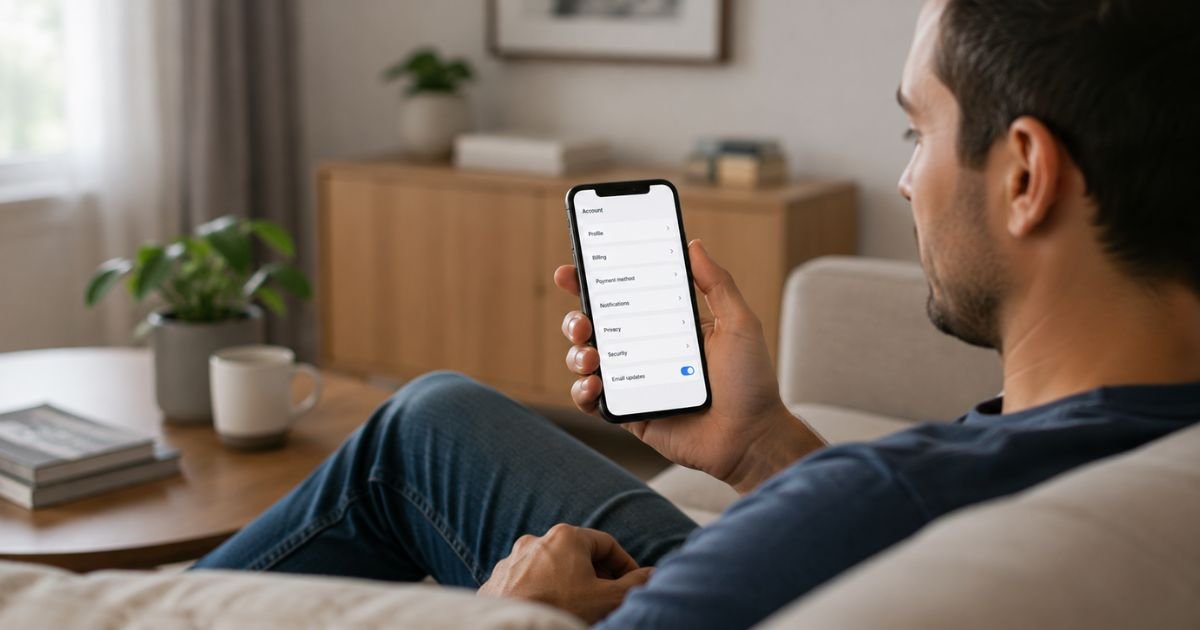
Grindr is a popular dating app, and many people add a paid subscription like XTRA or Unlimited for extra features. Sometimes those features stop feeling worth the monthly cost. Maybe you met someone, need a break, or just want to cut expenses.
Canceling is simple, but you have to do it in the right place. Deleting the app or your profile will not stop the charges. This guide shows you the official steps for both iPhone and Android so you can cancel cleanly and avoid unwanted bills.
Quick Answer
Cancel your Grindr subscription through the Apple App Store on iPhone or the Google Play Store on Android. Open the store, go to your subscriptions list, select Grindr, and choose Cancel Subscription. You keep premium access until the current billing period ends. Deleting the app does not cancel the plan.
How to Cancel Grindr Subscription
Why You Need to Cancel the Right Way
Grindr subscriptions auto-renew. If you ignore the renewal date, the charge hits your Apple ID or Google account again. Many people think removing the app stops everything. It does not. The billing stays active until you cancel through the store that processed the original purchase.
Doing it correctly takes only a couple of minutes and gives you peace of mind.
How to Cancel Grindr Subscription on iPhone (iOS)
Most iPhone users buy Grindr plans through the App Store. Follow these steps:
- Open the App Store app on your iPhone.
- Tap your profile picture or initials in the top right corner.
- Tap Subscriptions.
- Find and select Grindr in the list.
- Tap Cancel Subscription.
- Confirm when the pop-up appears.
You may need to scroll down to see the cancel option. After you finish, Apple usually sends a confirmation email. Keep that email for your records.
If the subscription does not appear, make sure you are signed in with the same Apple ID you used to buy it. In rare cases Apple Support can help if the option is missing.
How to Cancel Grindr Subscription on Android
Android users manage everything through Google Play.
- Open the Google Play Store app.
- Tap your profile icon in the top right.
- Tap Payments & subscriptions, then Subscriptions.
- Find Grindr in the list and tap it.
- Tap Cancel subscription.
- Confirm the cancellation when asked.
Google sends a confirmation email after the cancel goes through. Check your spam folder if you do not see it right away.
Make sure you are logged into the same Google account that made the original purchase. Switching accounts is a common reason people cannot find the subscription.
What Happens After You Cancel
Canceling stops future automatic renewals. You keep all premium features until the end of the period you already paid for. Once that date passes, the account returns to the free version.
No partial refund is given for unused days in most cases. The current billing cycle runs its course.
Important Warning: Deleting the App or Profile Does Nothing
This is the biggest mistake people make.
- Deleting the Grindr app from your phone leaves the subscription active.
- Deleting or deactivating your Grindr profile also leaves the subscription active.
You must cancel through the App Store or Google Play. Otherwise the charges continue. Grindr’s official help pages state this clearly.
How to Check If Your Cancellation Worked
After you cancel, go back to the Subscriptions section in the App Store or Google Play. Grindr should now show as canceled or set to expire on a specific date.
You can also look for the confirmation email from Apple or Google. If the charge still appears on your next statement, contact the store support right away with your confirmation details.
Refunds and What to Expect
Grindr’s terms say most purchases are final and non-refundable.
- On iPhone, refund requests go through Apple. You can report a problem from the original receipt email or visit reportaproblem.apple.com.
- On Android, you can sometimes request help through Grindr support or Google Play, but approval is not guaranteed.
If you were charged by mistake or experienced a technical issue, gather screenshots and contact the store that billed you. Acting quickly improves your chances.
Tips for a Smooth Cancellation
Cancel a few days before the renewal date. This gives the system time to process everything.
Take a screenshot of the confirmation screen. Save the email. These records help if any charge appears later.
If you have more than one Apple ID or Google account, double-check which one holds the subscription.
You can also manage or cancel subscriptions from a computer by signing into account.apple.com or play.google.com and going to the subscriptions section.
Common Problems and Quick Fixes
The subscription does not show up in the list. You are probably signed into a different account. Switch to the original one and try again.
The cancel button is missing or grayed out. Restart the App Store or Play Store app, or restart your phone. If it still fails, contact Apple or Google support.
You switched from iPhone to Android (or the other way). Subscriptions do not transfer between platforms. Cancel the old one on the original device or account, then subscribe again on the new platform if you want.
FAQs About How to Cancel Grindr Subscription
Q: Will I lose access right away when I cancel Grindr?
No. You keep XTRA or Unlimited features until the end of the billing period you already paid for.
Q: Does deleting my Grindr account cancel the subscription?
No. Deleting the profile or the app does not stop billing. You must cancel through the App Store or Google Play.
Q: Can I get a refund after canceling?
Most purchases are non-refundable. On iPhone you request through Apple. On Android you can try Google Play or Grindr support, but success is not guaranteed.
Q: What if I can’t find the Grindr subscription in my list?
Confirm you are logged into the exact Apple ID or Google account used for the original purchase. Check expired subscriptions at the bottom of the list. Contact Apple or Google support if it still does not appear.
Conclusion
Canceling your Grindr subscription is quick once you know where to look. Go to the App Store on iPhone or Google Play on Android, open your subscriptions, select Grindr, and cancel. You keep access until the current period ends, and future charges stop.
Remember that deleting the app or profile does nothing for billing. Follow the official store steps, save your confirmation, and you are done. When you are ready to return later, you can always subscribe again with a few taps.
Disclaimer: This guide is based on official Grindr Help Center articles and store instructions available in 2026. App interfaces and policies can change. Always verify the current steps in your own App Store or Google Play account. This is not official Grindr documentation.