How to Cancel DeepSearch Subscription in 2026 [Step by Step]

Ever signed up for what looked like a handy AI search tool, only to watch your bank account get dinged week after week? If you’re staring at recurring DeepSearch charges and wondering how to make them stop, you’re not alone. Thousands of users face the same frustration every month.
The good news? Canceling your DeepSearch subscription is straightforward once you know where to look. Whether you signed up through the App Store, Google Play, or the website, this guide walks you through every step so you can take back control today.
You’ll learn the exact clicks needed on your phone, what happens after you cancel, and smart ways to request a refund if you qualify. By the end, you’ll feel confident and charge-free.
What Is DeepSearch and Why People Cancel
DeepSearch AI is a mobile app marketed as an intelligent search assistant. It promises quick people searches, AI-powered answers, and unlimited access with a paid plan.
But many users quickly realize the free trial turns into automatic weekly or yearly billing they never meant to keep.
Common reasons folks want to cancel DeepSearch subscription include:
- Unexpected charges after a low-cost trial
- The app doesn’t deliver the value promised
- They simply found a better free alternative
If any of that sounds familiar, you’re in the right place. The process is quick and works the same way for most subscribers.
How to Cancel DeepSearch Subscription on iPhone (iOS)
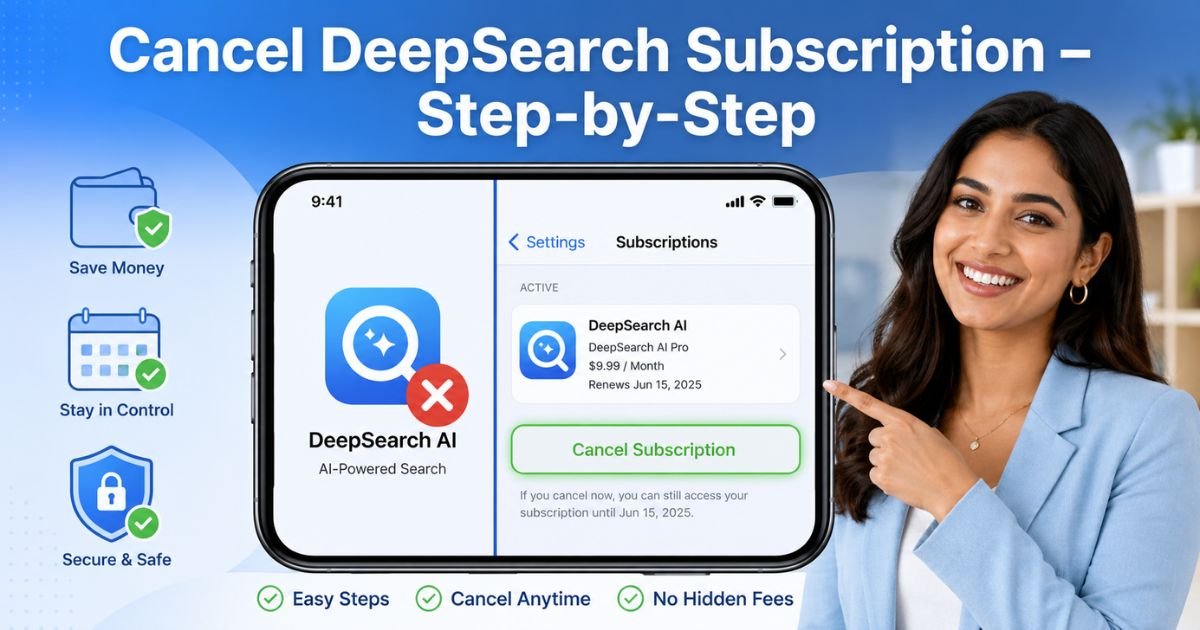
Apple handles most subscriptions through your Apple ID, so you don’t need to open the DeepSearch app itself. Here’s the fastest way:
- Open the Settings app on your iPhone.
- Tap your name at the top (your Apple ID).
- Tap Subscriptions.
- Scroll to find DeepSearch AI or DeepSearch in the list.
- Tap it, then tap Cancel Subscription.
- Choose a reason and confirm.
You’ll get an email from Apple confirming the change. Your access continues until the current billing period ends, no sudden cutoff.
Quick iOS Tip
If you don’t see the subscription listed, double-check you’re logged into the same Apple ID you used to sign up.
How to Cancel DeepSearch Subscription on Android
Google Play manages these the same way. Follow these steps:
- Open the Google Play Store app.
- Tap your profile picture in the top right.
- Select Payments & subscriptions.
- Tap Subscriptions.
- Find DeepSearch AI Search Assistant and tap it.
- Tap Cancel subscription, pick a reason, and confirm.
Done! You’ll receive a confirmation email, and billing stops at the end of the current cycle.
Canceling via the DeepSearch App or Website
Sometimes you can manage it directly inside the app or on the website:
- Open the DeepSearch app and tap the person icon (top right).
- Go to Pro Profile or Subscriptions.
- Look for the Cancel button and follow the prompts.
If you signed up on the website (deepsearchai.co), check your confirmation email for a Paddle customer portal link. Click it, log in, and cancel there. Or simply email support@deepsearchai.co for help.
Pro Tip: Always take a screenshot of your cancellation confirmation screen and email. It’s your proof if any questions come up later.
What Happens After You Cancel DeepSearch Subscription
Great question! Cancellation does not delete the app or remove your account right away. Here’s the timeline:
- You keep full access until your current paid period ends.
- The subscription simply stops auto-renewing.
- After the period expires, you’ll drop to free or limited access (if available).
Deleting the app does nothing to the subscription, always cancel through the store or portal first.
Common Mistake: Many people delete the DeepSearch app thinking it stops billing. It doesn’t! The charge keeps coming until you officially cancel through Apple, Google, or the website.
DeepSearch Subscription Plans at a Glance
Here’s a simple table to help you understand what you might be canceling:
| Plan Type | Typical Cost | Billing Cycle | Best For | Cancellation Window |
|---|---|---|---|---|
| Weekly Trial | $1.99 first week | Weekly | Testing the app | Any time |
| Weekly | $8.99+ | Weekly | Short-term users | Any time |
| Annual | $39.99 | Yearly | Long-term users | Any time |
Prices can vary by region and promotions—always check your confirmation email for your exact rate.
Real-Life Example
Take a 34-year-old teacher from Texas. She downloaded DeepSearch AI after seeing an ad for a “7-day free trial.” She used it twice, then forgot about it. Two weeks later she noticed $8.99 missing from her account.
She panicked, deleted the app, and still got charged again. Following the steps above, she canceled through her iPhone Settings in under two minutes.
Because she had used the app so little and acted fast, she also emailed support@deepsearchai.co and got a partial refund within 48 hours.
Her story shows you’re not stuck, quick action really works.
How to Request a Refund After Canceling
Canceling stops future charges, but what about money you already paid?
- App Store purchases: Contact Apple or Google support directly through their refund request forms. You usually have 48 hours for recent charges.
- Website purchases: Email support@deepsearchai.co within 7 days of your first purchase and if you’ve sent fewer than 3 messages through the app.
Be polite, include your order number, and explain why you’re requesting the refund. Most people see results within a few business days.
Tips to Avoid Future Subscription Surprises
You don’t want to go through this again, right? Here are simple habits that save you money:
- Review your subscriptions monthly in your phone settings.
- Use a password manager to store confirmation emails.
- Turn off auto-renew when you first sign up for any trial.
- Set a phone reminder one day before any free trial ends.
These tiny steps keep your budget safe and your inbox cleaner.
FAQs About How to Cancel DeepSearch Subscription
Q: How long does it take for DeepSearch subscription to stop after I cancel?
Cancellation usually takes effect at the end of your current billing period. You won’t be charged again, but you can keep using the app until that date ends. You’ll receive a confirmation email right away so you know the exact stop date.
Q: Can I cancel DeepSearch subscription from inside the app?
Yes, many users can. Open the app, tap the profile icon, go to Pro Profile or Subscriptions, and look for the cancel option. If you don’t see it, use your phone’s Settings or Play Store method instead—it always works.
Q: Will I get a refund if I cancel my DeepSearch AI subscription right now?
It depends. App Store refunds are decided by Apple or Google. Website purchases may qualify for a refund only if it’s within 7 days and you’ve used the app very little (fewer than 3 messages). Contact support@deepsearchai.co with your details for the fastest answer.
Conclusion
Canceling your DeepSearch subscription doesn’t have to be stressful. Whether you’re on iPhone, Android, or the website, the steps are clear, quick, and designed to give you control.
Remember to cancel through the official store or portal, keep your confirmation, and reach out for a refund if you qualify.
Take five minutes right now, follow the steps that match your device, and enjoy the peace of mind that comes with one less bill. If you ever need to check your subscriptions again, just bookmark this guide, you’ll thank yourself later.
Disclaimer: This content is for informational and educational purposes only and does not constitute professional, financial, legal, or medical advice. The information provided may not apply to your specific situation. Always consult a qualified professional for personalized guidance.