How to Cancel Calendly Subscription? [Step by Step]

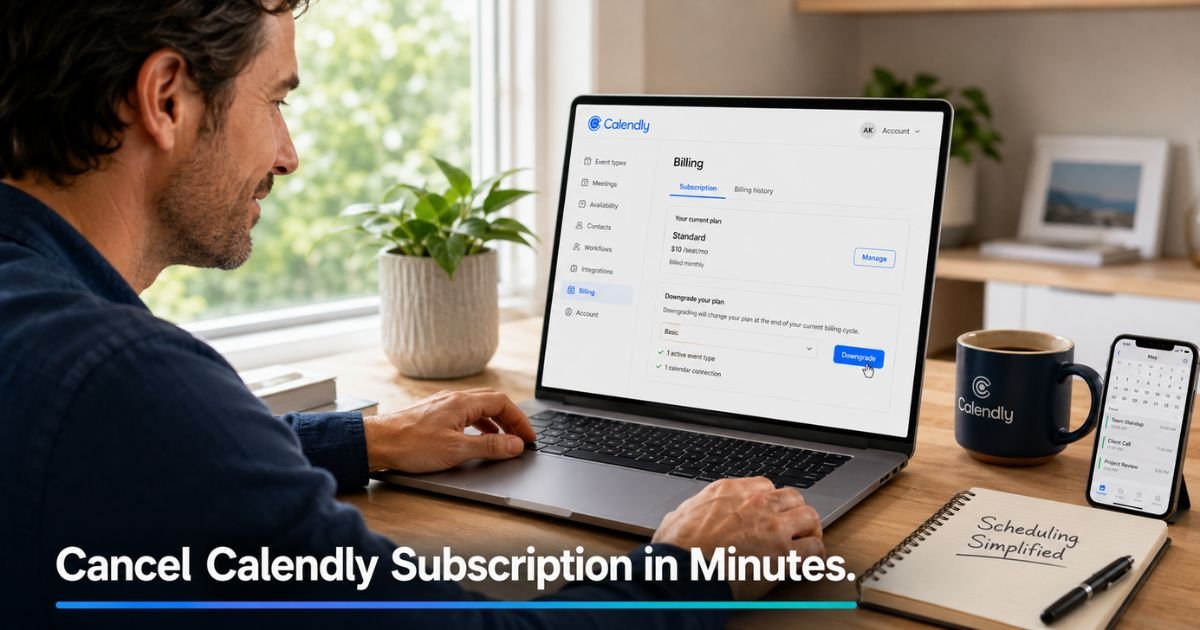
You check your email and see another renewal notice from Calendly. The tool helped you book meetings smoothly for months, but your needs have changed and the paid plan no longer feels necessary. Many busy professionals reach this point and wonder about the simplest way forward.
If you are searching for how to cancel Calendly subscription, the process is straightforward once you know where to look. Calendly lets you downgrade to the free plan at any time, and you keep full access to your current paid features until the end of your billing cycle.
You will find exact steps for the website and Apple in-app purchases, what happens after you downgrade, and tips to avoid common mistakes.
Why You Might Want to Cancel Your Calendly Subscription
Scheduling tools like Calendly make life easier, yet circumstances change. Here are frequent reasons people choose to downgrade:
- Your meeting volume dropped and the free plan now covers your needs.
- You want to cut monthly or annual costs while exploring other calendar options.
- You completed a project or season that required advanced features like team scheduling or custom branding.
- You subscribed during a trial and prefer not to continue paying.
- You want to simplify recurring expenses and review every subscription on your statement.
Whatever your situation, Calendly makes switching plans simple and reversible if your needs grow again later.
First, Check How Your Calendly Subscription Is Billed
Before you start the cancellation process, confirm where your subscription lives. Most users manage everything directly through the Calendly website. A smaller number purchase through the iOS app and Apple handles billing.
Quick ways to identify your source:
- Log into Calendly and visit the Billing page. If you see plan details and a “Change plan” button, you subscribed on the website.
- Check your email for receipts. Calendly sends invoices directly from their domain. Apple receipts come from Apple.
- Look at your bank or credit card statement. Charges from Calendly appear as “Calendly” or similar. Apple charges show as “Apple” or “iTunes.”
Once you know the source, follow the matching steps below. This prevents wasted time and ensures the cancellation goes through correctly.
How to Cancel Calendly Subscription on the Website
The majority of users cancel by downgrading to the free plan inside their Calendly account. This is the official and most direct method.
Follow these steps:
- Log in to your Calendly account at calendly.com.
- Click your profile picture or name in the top right corner.
- Select Admin Center from the menu.
- In the left sidebar, click Billing.
- On the Billing page, click Change plan.
- Choose Upgrade/Downgrade.
- Select the Free plan from the options shown.
- Review the summary of what you will keep and lose, then confirm the change.
Calendly processes the downgrade immediately. Your subscription switches to the free plan at the end of your current billing cycle. You continue enjoying every paid feature you currently have until that date arrives.
How to Cancel Calendly Subscription Purchased Through Apple
If you subscribed inside the Calendly iOS app, Apple manages the billing. You must cancel through your Apple ID settings rather than inside Calendly.
Here is the process:
- Open the Settings app on your iPhone or iPad.
- Tap your name at the top of the screen.
- Tap Subscriptions.
- Find and tap Calendly in the list.
- Tap Cancel Subscription and confirm your choice.
Apple updates your status right away. You keep access to paid Calendly features until the end of the current billing period. After that date, your account moves to the free plan automatically.
Pro Tip: Cancel at least 24 to 48 hours before your renewal date. This gives the system plenty of time to process and prevents any surprise charges on your next statement.
What Happens After You Downgrade Your Calendly Plan
Downgrading does not cut off access immediately. You keep every feature from your current paid plan until the final day of your billing cycle. After that date, your account switches to Calendly’s free plan with no further charges.
On the free plan you can still create unlimited one-on-one events, connect one calendar, and use basic scheduling links. Advanced options such as team scheduling, custom branding, workflows, and higher limits become unavailable until you upgrade again.
The good news is that upgrading back to a paid plan is always available if your needs change. Many users downgrade during slower periods and upgrade again when client volume picks up.
Common Mistake: Some people assume they must delete their entire Calendly account to stop charges. Deleting your account is permanent and removes all your data and scheduling links. Downgrading to free is the correct way to cancel your paid subscription while keeping your account intact.
Calendly Cancellation Methods at a Glance
| Method | Where to Cancel | When Access Ends | Best For | Reversible? |
|---|---|---|---|---|
| Website (Most Users) | Admin Center > Billing > Change plan | End of current cycle | Direct web subscribers | Yes, upgrade anytime |
| Apple App Store | iPhone Settings > Apple ID > Subscriptions | End of current cycle | Users who bought via iOS app | Yes, upgrade anytime |
| Account Deletion | Account Settings (separate process) | Immediate (permanent) | Users who want to close account entirely | No |
Use this table as a fast reference when you are ready to make the change.
How to Request a Refund from Calendly
Calendly payments are generally non-refundable according to their terms. However, their support team sometimes reviews special situations on a case-by-case basis.
If you believe you qualify for a refund, contact Calendly billing support through their help center and explain your circumstances clearly. Include your account email and any relevant details such as recent billing dates.
For subscriptions purchased through Apple, you can also request a refund directly from Apple within their standard policy window.
Common Issues and Troubleshooting
Even with simple steps, a few situations can cause confusion.
- You do not see the Billing option: Make sure you are logged in as an Owner or Admin on the account. Only these roles can manage billing.
- The downgrade button is missing: Double-check that you are viewing the correct Billing page inside Admin Center and that your current plan allows downgrading.
- You subscribed through the mobile app: Look for a message inside the Calendly app directing you to manage the subscription through Apple. Follow the Apple steps instead.
- You want to keep some paid features: Review the free plan limits on Calendly’s pricing page before confirming the downgrade so you know exactly what changes.
If you run into any other issues, Calendly’s support team responds quickly through the help center chat or ticket system.
FAQs About How to Cancel Calendly Subscription
Q: How long do I keep paid features after I downgrade my Calendly subscription?
You keep every paid feature until the very end of your current billing cycle. After that date your account automatically switches to the free plan with no further charges.
Q: Can I cancel my Calendly subscription and get a refund?
Refunds are not automatic. Calendly payments are generally non-refundable, though support may review special cases. For Apple-managed subscriptions, you can request a refund through Apple within their policy window.
Q: What is the difference between downgrading and deleting my Calendly account?
Downgrading to free cancels your paid subscription while keeping your account, scheduling links, and data intact. Deleting your account permanently removes everything and cannot be undone. Use downgrade when you simply want to stop paying.
Conclusion
Canceling your Calendly subscription is as simple as downgrading to the free plan on the website or through Apple settings if you purchased via the iOS app. You keep full paid access until the end of your billing cycle, and you can upgrade again anytime your scheduling needs grow.
Taking control of this subscription helps you pay only for the tools you actively use. Open your Calendly account or Apple settings today and complete the steps if the paid plan no longer fits your routine.
Disclaimer: This content is for informational and educational purposes only and does not constitute professional, financial, legal, or medical advice. The information provided may not apply to your specific situation. Always consult a qualified professional for personalized guidance.