How to Cancel CCleaner Subscription? [Step by Step]

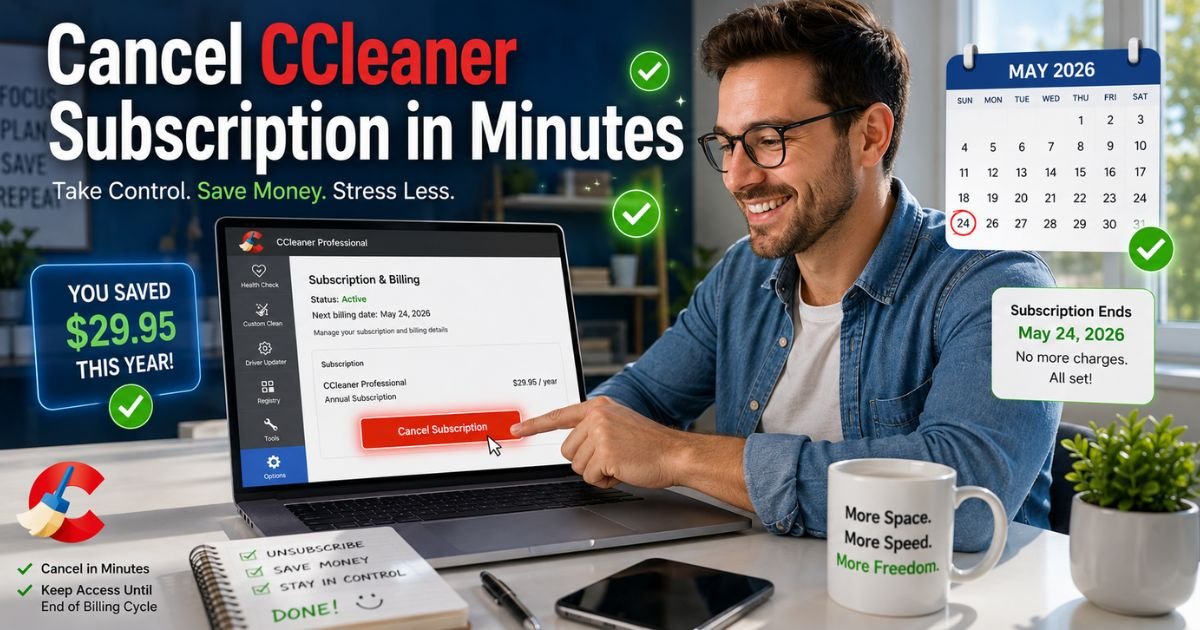
Hey there, if you’re staring at your credit card statement wondering why you’re still paying for CCleaner Pro every month, you’re not alone. Many folks grab the popular cleaning tool thinking it’ll keep their PC running smoothly forever, only to realize later that the auto-renewal keeps charging them.
Whether it’s because you found a better free alternative or you just want to tighten your budget, figuring out how to cancel CCleaner subscription doesn’t have to be a headache. I’ll walk you through everything with simple steps that actually work right now in 2026.
Why Cancel Your CCleaner Subscription?
Before we jump into the how-to, it’s worth asking yourself why you’re ready to say goodbye. Maybe the software isn’t delivering the speed boost you expected anymore.
Or perhaps you’ve switched to built-in Windows tools that do the job for free. Whatever your reason, canceling CCleaner Pro is a smart move if it no longer fits your needs.
People often cancel because of rising costs or when they discover lighter alternatives that don’t eat up resources. Plus, with so many privacy-focused apps out there today, it’s easy to feel like you’re overpaying for basic cleaning features.
If you’re nodding along, keep reading. We’ll cover the full process so you can cancel without losing access right away.
Understanding Your CCleaner Pro Subscription First
CCleaner Pro isn’t just a one-time buy for most users. It’s a subscription service that automatically renews unless you stop it. This means your license stays active until the end of your paid period, even after you cancel. That’s actually pretty user-friendly compared to some other apps.
Knowing this upfront prevents panic. You won’t lose cleaning tools or privacy features immediately. But yes, it will stop renewing, which saves you money long-term. Now, let’s dive into the actual steps.
Cancel CCleaner Subscription via the Official Portal
Most people buy CCleaner directly from their website, so this is the most common route for ccleaner cancel subscription. It takes about two minutes once you have your details handy.
First, dig up the original purchase confirmation email. It usually comes from noreply@cleverbridge.com, their billing partner. Open it and look for the link that says something like “Manage your CCleaner Professional subscription.” Click that bad boy.
If you can’t find the email, head straight to the subscription management portal at https://www.ccleaner.com/subscription-management. You’ll need your email address and the Cleverbridge reference number from that same confirmation message. Log in, and boom, you’re in.
Once inside, scroll to the “Current plan” section. You’ll see a clear “Cancel” or “Disable automatic renewal” option. Click it, confirm your choice, and that’s it. You’ll get a confirmation email right away. Simple, right?
This method works whether you’re on Windows, Mac, or even using the web version. Pro tip: Do this a few days before your renewal date to avoid any last-minute glitches.
How to Cancel If You Bought Through the App or Mobile
Bought CCleaner via Google Play or the Apple App Store? No problem. Those platforms handle their own subscriptions, so you cancel directly from your device.
For Android users on Google Play
Open the Play Store app, tap your profile icon, then go to Payments & subscriptions > Subscriptions. Find CCleaner, select it, and hit “Cancel subscription.” Follow the prompts, and you’re done.
On iOS or iPadOS
Head to Settings > [Your Name] > Subscriptions. Tap the CCleaner entry, choose “Cancel Subscription,” and confirm. Apple makes it super intuitive.
These steps also apply if you grabbed the mobile version of CCleaner. Remember, canceling here only stops the app store billing. Your desktop license stays separate if you have one.
Troubleshooting Common CCleaner Subscription Cancellation Issues
Sometimes things don’t go as smoothly as planned. Maybe the portal won’t let you log in, or you can’t find the Cleverbridge email. Don’t worry. I’ve seen these hiccups plenty of times.
If the “Manage Subscription” button is missing in the CCleaner app itself, try updating to the latest version first. Go to Settings > About in the program and check for updates. Still stuck? Reach out to support@ccleaner.com with your order details.
Another frequent issue? Getting charged after canceling. Double-check your confirmation email and keep an eye on your bank statements for the next cycle. If a charge slips through, contact them quickly for a refund.
What Happens After You Cancel CCleaner Pro?
Good news: Your current license doesn’t vanish. You keep full Pro features like advanced cleaning, real-time monitoring, and driver updates until the billing period ends. After that, it drops back to the free version.
This gives you time to test alternatives without rushing. Many users switch gradually, which I think is the smartest way.
Refund Policy: Can You Get Your Money Back?
CCleaner offers a solid 30-day money-back guarantee for direct purchases. If you cancel within that window and ask nicely, they often process a full refund. Just use their contact form at support.ccleaner.com and mention your order number.
For purchases outside the 30 days, refunds aren’t guaranteed, but they’re usually helpful if you explain your situation. Check their full cancellation and refund policy for the latest details.
Free Alternatives to CCleaner Worth Trying
Why not explore options that won’t hit your wallet? Windows 11 and 10 have built-in Storage Sense and Disk Cleanup that handle a lot of the basics. For something more powerful but still free, try BleachBit. It’s open-source and great for deep cleaning without subscriptions.
Other solid picks include PrivaZer for privacy tweaks or Wise Disk Cleaner for quick junk removal. These tools have helped me and my readers cut costs while keeping PCs snappy.
If you’re into full system optimization, check out official Microsoft resources at https://support.microsoft.com for built-in tips.
Here’s a quick comparison table to help you decide:
| Tool | Cost | Key Features | Best For |
|---|---|---|---|
| CCleaner Free | Free | Basic cleaning, registry fix | Beginners |
| BleachBit | Free | Deep wipes, privacy focus | Advanced users |
| Windows Disk Cleanup | Free | System files, temp data | Everyday maintenance |
| Wise Cleaner | Free/Paid | Junk removal, defrag | Budget-conscious |
Tips to Manage All Your Subscriptions Like a Pro
Canceling one subscription is great, but why stop there? Use apps like Rocket Money or truebill to track everything in one place. Set calendar reminders a week before renewals hit.
Always review your bank statements monthly. And when trying new software, start with the free trial instead of jumping straight to paid. These habits have saved me hundreds over the years, and they can do the same for you.
Now that you’ve got the full picture on ccleaner cancel subscription, you’re in control. No more mystery charges or frustration.
FAQs About CCleaner Cancel Subscription
Q: Can I still use CCleaner after canceling my subscription?
Yes, absolutely. Your Pro features stay active until the end of your current paid period. After that, it reverts to the free version with limited tools. This gives you plenty of time to decide if you want to stick with basics or switch tools.
Q: Will canceling CCleaner subscription give me an immediate refund?
Not always right away. If you’re within the 30-day money-back window, contact support for a full refund. Outside that, they review case by case. Always cancel before the next billing date to stop future charges.
Q: How do I cancel CCleaner subscription if I can’t find my purchase email?
No sweat. Go directly to https://www.ccleaner.com/subscription-management and use your registered email. If you still need help, submit a quick ticket at their support site. They usually respond within a day or two with your reference number.
Conclusion
Canceling your CCleaner subscription is one of those small wins that adds up. It frees up cash and simplifies your digital life. If you’ve followed along, you should be all set by now. Got questions? Drop them in the comments, and I’ll help where I can.
Disclaimer: This guide is based on the most up-to-date information available as of May 2026. Subscription processes can change, so always verify details directly on the official CCleaner site or through their support team. I’m not affiliated with CCleaner or Avast, and this is not legal or financial advice. Results may vary based on your specific purchase method and account status.