How to Cancel ChatGPT Subscription on iPhone [Step by Step]

Want to cancel your ChatGPT subscription on iPhone? You’re in the right place. Many people cancel ChatGPT Plus when they no longer need the higher limits, advanced models, or extra features. The process is quick, but it must be done through Apple because the App Store handles the billing.
This guide gives you the exact steps for iPhone and iPad. You’ll also learn what happens to your access after canceling, how to confirm it worked, and what to do if the option is missing. Follow these instructions and you’ll stop auto-renewals in under a minute.
Quick Answer
Open the Settings app on your iPhone, tap your name at the top, then tap Subscriptions. Select ChatGPT and tap Cancel Subscription. Confirm the cancellation. Your paid features stay active until the end of the current billing period. Deleting the ChatGPT app does not cancel the subscription.
How to Cancel ChatGPT Subscription on iPhone
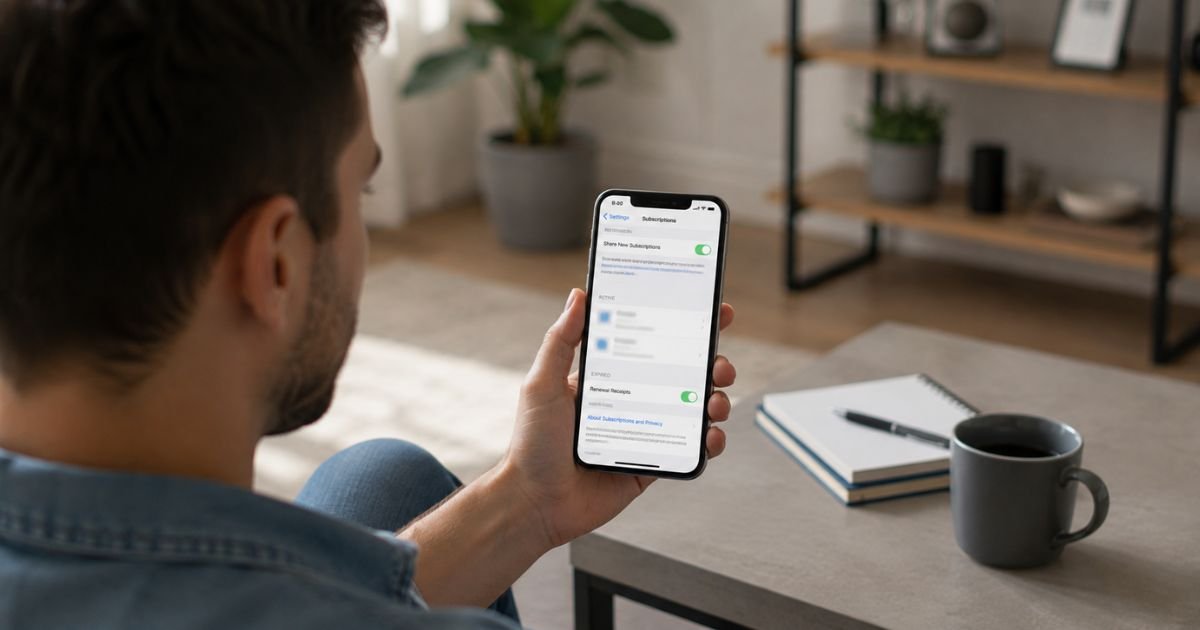
If you subscribed inside the ChatGPT iOS app, Apple manages the payment. OpenAI cannot cancel it for you. Use these steps:
- Open the Settings app on your iPhone (the gray gear icon).
- Tap your name at the very top of the screen.
- Tap Subscriptions.
- Find and tap ChatGPT in the list of active subscriptions.
- Tap Cancel Subscription.
- Confirm on the pop-up window.
You’ll see a message confirming the subscription will not renew. That’s it. The process usually takes less than 30 seconds.
Tip: Do this at least 24 hours before your next billing date. Apple typically charges about 24 hours before the period ends.
Alternative Way from Inside the ChatGPT App
You can also start from the ChatGPT app itself:
- Open the ChatGPT app.
- Tap your profile icon.
- Look for Manage Subscription or a similar billing option.
- This often takes you directly to the Apple subscription page.
- Follow the same Cancel Subscription steps.
This shortcut works for many users and can save a couple of taps.
What Happens After You Cancel on iPhone
Your ChatGPT Plus (or other paid) features remain fully available until the end of the current billing period. After that date:
- The subscription stops renewing.
- You will not be charged again.
- Your account switches to the free plan.
- Chat history, custom GPTs, and saved data usually stay intact.
You can continue using the paid features right up to the final day. There is no immediate loss of access when you cancel.
Important Things to Know
- Deleting the ChatGPT app does nothing. The subscription lives in your Apple ID, not in the app. You must cancel through Settings.
- Apple controls the billing. OpenAI cannot see or cancel App Store subscriptions.
- Refunds are handled by Apple. If you believe you qualify, request one through Apple’s report a problem page or support.
- Family Sharing users should check the family organizer’s subscriptions if the plan was shared.
Common Problems and How to Fix Them
I don’t see ChatGPT in my Subscriptions list.
Make sure you’re signed into the same Apple ID used for the original purchase. Check if the subscription is under a family member’s account. Also confirm you didn’t subscribe on the ChatGPT website instead of the app.
The Cancel button is missing.
If the screen already says “Expires on [date]” in red or gray text, the subscription is already canceled. No further action is needed. If it still says “Renews on [date],” scroll down carefully—the Cancel button is sometimes lower on the page.
I still got charged after canceling.
Apple charges roughly 24 hours before the renewal date. If you canceled too close to that window, the charge may still process. Contact Apple Support with your cancellation confirmation if a later charge appears.
I subscribed on the website, not the app.
Cancel through the ChatGPT website instead: Log in at chatgpt.com → profile icon → Settings → Billing → Cancel plan. The iPhone steps only work for App Store purchases.
Helpful Tips Before You Cancel
- Note your next billing or expiration date so you know when paid features end.
- Take a screenshot of the confirmation screen for your records.
- If you only need occasional extra capacity, consider whether the free plan still meets most of your needs.
- You can resubscribe later through the same Apple ID if you change your mind.
- Keep the ChatGPT app installed if you want easy access to your chat history on the free plan.
Canceling is permanent for the current cycle, but you can always start a new subscription.
How to Confirm the Cancellation Worked
After you cancel:
- Go back to Settings → [Your Name] → Subscriptions.
- Tap ChatGPT again.
- You should now see an expiration date instead of a renewal date.
You can also check your email for a confirmation from Apple. If anything looks wrong, contact Apple Support directly.
FAQs About How to Cancel ChatGPT Subscription on iPhone
Q: Will I lose access to ChatGPT Plus right away on iPhone?
No. You keep full paid features until the end of the current billing period. After that date your account drops to the free plan.
Q: Does deleting the ChatGPT app cancel the subscription?
No. Deleting the app has no effect on the subscription. You must cancel it in the iPhone Settings under Subscriptions.
Q: Can OpenAI cancel my iPhone subscription for me?
No. Because the purchase went through the Apple App Store, only Apple can process the cancellation. Use the steps in this guide.
Q: How do I request a refund for ChatGPT on iPhone?
Go to Apple’s Report a Problem page or contact Apple Support. Provide the purchase details. OpenAI cannot issue refunds for App Store transactions.
Conclusion
Canceling your ChatGPT subscription on iPhone is simple and takes less than a minute. Open Settings, tap your name, go to Subscriptions, select ChatGPT, and tap Cancel Subscription.
Confirm the choice and you’re done. Paid features stay active until the end of your current period, and future charges stop.
Take a quick screenshot of the confirmation and note the expiration date. Once that’s finished, you’ll have full control of your ChatGPT plan again.
Disclaimer: This guide is based on official OpenAI Help Center and Apple support information as of mid-2026. Menu labels and policies can change. Always verify the latest steps in your own iPhone Settings or at help.openai.com. This article is independent and not affiliated with OpenAI or Apple.