How to Cancel Peloton Subscription? [Step by Step]

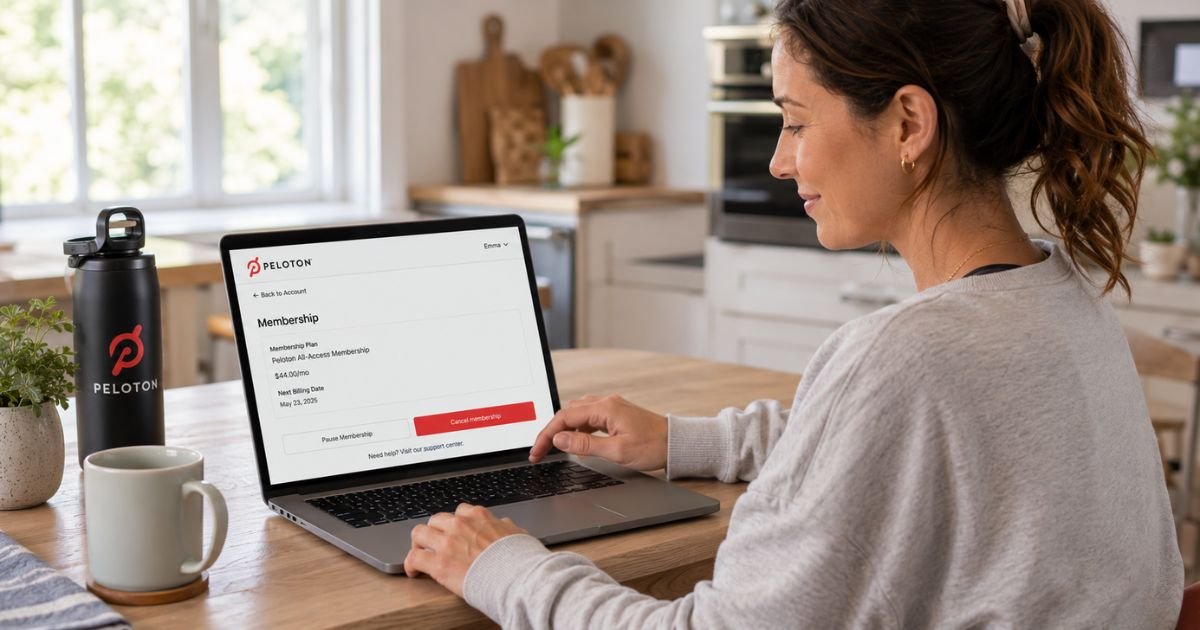
You bought a Peloton because the workouts motivated you. The All-Access membership gave you live classes and a strong community. But now life changed, the bike sits unused, or the monthly cost feels too high. You want to cancel without any hassle.
Canceling your Peloton subscription is easier than many people think. You can do it directly through your Peloton account online in just a few minutes.
This guide walks you through exactly how to cancel Peloton subscription on the website and through app stores so you can stop the charges cleanly.
Why People Decide to Cancel Their Peloton Subscription
Peloton memberships are convenient, but they are not cheap. Many members cancel after the initial excitement fades or when their routine shifts.
Here are common reasons people cancel:
- They no longer use the bike or treadmill regularly.
- The monthly fee no longer fits their budget.
- They found free or cheaper workout alternatives.
- They bought the equipment during the pandemic and now want to downgrade.
- They want to pause for a few months instead of canceling completely.
Whatever your situation, you can cancel anytime. Your access simply continues until the end of the current billing period.
How to Cancel Peloton Subscription on the Website
This is the most reliable method for All-Access and most App memberships.
- Go to onepeloton.com/mymembership on any browser and log into your account.
- Find your active membership and click the Manage button next to it.
- Select Pause or cancel.
- Choose Cancel membership.
- Select your reason for canceling and confirm.
You will see a confirmation screen with the date your access ends. Save or screenshot this page for your records.
Only the primary account holder can cancel the subscription. Secondary profiles do not have this option.
How to Cancel Peloton App Membership Through Apple or Google
If you subscribed to Peloton App One or App+ through your phone, you must cancel through the app store.
On iPhone:
- Open the Settings app.
- Tap your name at the top.
- Tap Subscriptions.
- Select Peloton.
- Tap Cancel Subscription and confirm.
On Android:
- Open the Google Play Store.
- Tap your profile icon.
- Go to Payments & subscriptions > Subscriptions.
- Tap Peloton and select Cancel subscription.
Always check your credit card statement first to confirm whether Peloton or Apple/Google is billing you.
What Happens After You Cancel Your Peloton Subscription
When you cancel, you keep full access until the end of your current paid billing period. After that date, your membership ends automatically.
Here is what to expect:
- No prorated refund for unused days in most cases.
- Your workout history and profile usually remain saved.
- You can still log in and view past classes, but live and on-demand content becomes limited.
- You can resubscribe anytime later if you want to return.
Peloton sometimes offers a pause option instead of full cancellation. Pausing lets you keep your account active without paying for a set number of months.
Real-Life Example: How Rachel Canceled Her Membership
Rachel, a marketing manager and mom of two in Austin, bought a Peloton Bike during the pandemic. She loved the live classes at first and used it almost every day. Two years later, her work schedule got busier and the bike became more of a clothes rack.
Every month the $49.99 charge appeared, and she kept saying she would cancel soon. One Sunday morning she logged into her Peloton account on her laptop, clicked Manage, chose to cancel, and finished the process in less than five minutes. She received a confirmation email with her final access date.
Rachel felt immediate relief. She kept the email and screenshot just in case. A month later she checked her bank statement and the charge was gone. She still logs in occasionally to view her old workout stats.
Pro Tip: Cancel at least a few days before your next billing date. This gives you time to confirm everything went through and avoids any last-minute issues.
If you run into any trouble, you can also call Peloton Member Support at 1-866-679-9129. They are available most days and can walk you through the process.
Common Mistake: Many people try to cancel only inside the Peloton app on their phone. The app often lacks the full cancellation options. Always use the website at onepeloton.com/mymembership for the smoothest experience.
Peloton Cancellation Methods at a Glance
| Method | Best For | Steps Required | Time Needed | Notes |
|---|---|---|---|---|
| Peloton Website | All-Access & most memberships | Log in → Manage → Cancel | 3-5 minutes | Recommended method |
| iPhone Settings | App memberships via Apple | Settings → Subscriptions | 1-2 minutes | Required if billed by Apple |
| Google Play Store | App memberships via Android | Play Store → Subscriptions | 1-2 minutes | Required if billed by Google |
| Phone Support | Any membership | Call 1-866-679-9129 | 5-10 minutes | Good backup option |
Use the method that matches how you originally signed up.
FAQs About How to Cancel Peloton Subscription
Q: How long do I have access to Peloton after canceling?
You keep full access to your membership until the end of your current billing period. After that date, the subscription ends and you lose live and on-demand class access.
Q: Can I get a refund if I cancel my Peloton subscription?
Peloton does not offer prorated refunds in most cases. You will keep access until the end of the period you already paid for. Refunds are only available in specific situations or states.
Q: What if I want to pause instead of cancel?
Peloton offers a pause option on many memberships. When you go to Manage your membership, choose Pause instead of Cancel. This lets you stop payments temporarily while keeping your account and history.
Conclusion
Canceling your Peloton subscription does not have to be complicated. Use the website at onepeloton.com/mymembership, follow the steps, and keep your confirmation for peace of mind.
Ready to take control of your monthly expenses? Log in today and handle it in just a few minutes. You will feel better once it is done.
Disclaimer: This content is for informational and educational purposes only and does not constitute professional, financial, legal, or medical advice. The information provided may not apply to your specific situation. Always consult a qualified professional for personalized guidance.