How to Cancel Grammarly Subscription? [Step by Step]

You open your email and there it is again, that monthly Grammarly charge for the Premium plan you signed up for during a busy project six months ago. Now you barely use it, but the auto-renewal keeps hitting your card.
Sound familiar? You’re not alone. Thousands of people decide it’s time to cancel Grammarly subscription every month to save money or switch tools.
The good news? The process is quick, free, and you keep full access until your current billing period ends. You’ll learn the exact steps to cancel Grammarly subscription whether you signed up on the web, through the iPhone app, or via Google Play.
Why People Cancel Grammarly Subscription (and Why It’s Smart)
Life gets busy, budgets tighten, or you simply find a free alternative that does the job. Canceling is normal and easy, Grammarly even makes the process transparent so you stay in control.
Common reasons folks cancel include:
- Switching to a cheaper or free writing tool
- No longer needing advanced features like tone detection or plagiarism checks
- Cutting monthly expenses after a free trial ends
- Moving to team tools or built-in options in Microsoft Word or Google Docs
Whatever your reason, you can cancel anytime without fees or long hold times.
How to View Your Grammarly Subscription Details
Before you cancel anything, peek at what you’re paying for. It takes less than a minute.
- Go to grammarly.com and sign in.
- Click Account in the left sidebar.
- Select Subscription (or go straight to account.grammarly.com/subscription).
You’ll see your plan type, next billing date, and price. On mobile, just open that direct link in your browser.
Pro Tip: Set a calendar reminder every 90 days to review all your subscriptions. A quick check like this can easily save you $100+ a year.
How to Cancel Grammarly Subscription on the Web (Easiest Method)
This is the primary way most people cancel Grammarly subscription and it works perfectly in 2026.
- Sign in to your Grammarly account at grammarly.com.
- Click the Account tab on the left sidebar.
- Click Your account → Subscription.
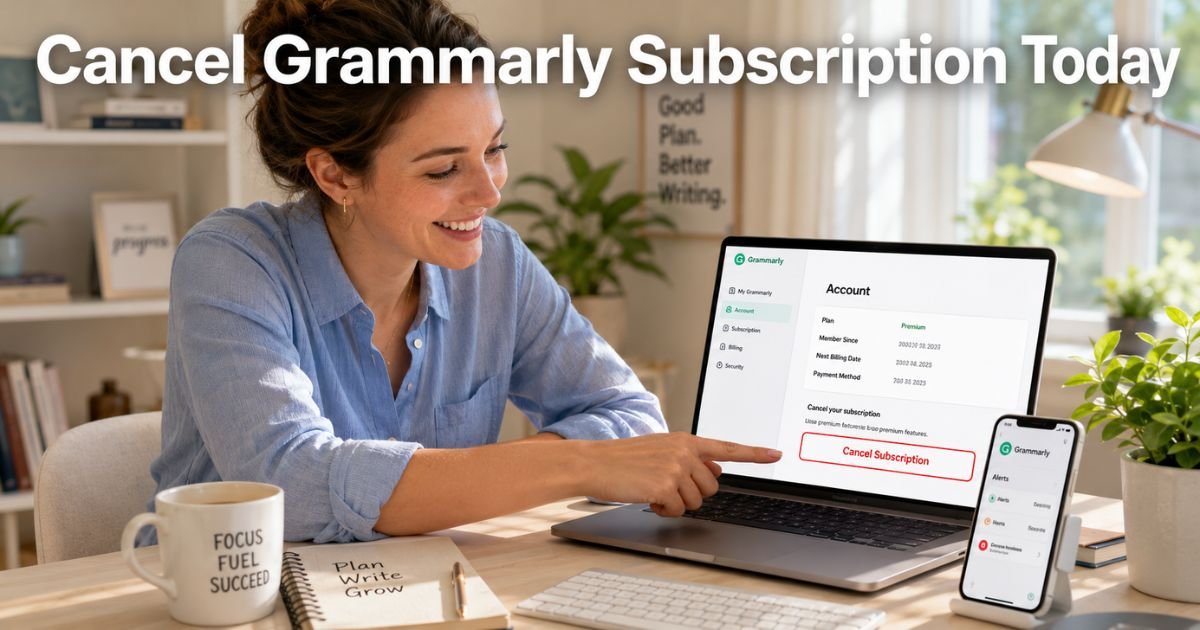
- Scroll to the bottom of the page and click Cancel Subscription.
- Click Continue or Yes, continue.
- Pick a reason for canceling and click Cancel Subscription.
You’ll get an instant confirmation email. Your paid features stay active until the end of your current billing cycle, no interruptions.
Common Mistake: Thinking you lose access the second you click cancel. You don’t! Grammarly lets you keep using everything you paid for right up until the renewal date.
How to Cancel Grammarly Subscription on iPhone or iPad (App Store Purchases)
If you signed up through the App Store, you’ll cancel directly in your iPhone settings.
- Open the Settings app.
- Tap your name at the top.
- Tap Subscriptions.
- Select Grammarly from the list.
- Tap Cancel Subscription and confirm.
This works whether you have Grammarly Free, Premium, or any other plan purchased via Apple.
How to Cancel Grammarly Subscription on Android (Google Play)
Bought it through the Google Play Store? Here’s the fix:
- Open the Google Play Store app.
- Tap your profile icon in the top right.
- Tap Payments & subscriptions → Subscriptions.
- Select Grammarly.
- Tap Cancel subscription and follow the prompts.
Super simple and takes about 30 seconds.
| Method | Best For | Time Needed | Where to Go |
|---|---|---|---|
| Web (Grammarly site) | Most users | 1 minute | account.grammarly.com/subscription |
| iPhone Settings | App Store purchases | 45 seconds | Settings → Subscriptions |
| Google Play | Android purchases | 45 seconds | Play Store → Payments & subscriptions |
| Mobile browser | Any phone or tablet | 1 minute | Direct link to subscription page |
Real-Life Example
Take a 38-year-old marketing manager from Chicago. He signed up for Grammarly Premium during a big campaign last year and loved the suggestions at first. But once things slowed down, he realized he was paying $12 a month for features he no longer used.
One evening he followed the web steps above, canceled in under two minutes, and kept access for the rest of the month. He switched to the free version plus built-in tools in his email app.
He saved $144 in the first year and now checks his subscriptions quarterly. “It felt great taking back control of my budget,” he said.
What Happens After You Cancel Grammarly Subscription?
You keep full access to all paid features until your current billing period ends. After that, your account automatically switches to the free version.
Grammarly does not issue automatic refunds, but you can contact their support team if you have a special case (recent purchase or billing error). Most people simply enjoy the remaining days of Premium and move on without any hassle.
Bonus Tips to Avoid Future Grammarly Charges
- Always cancel at least one day before your renewal date.
- Use the direct subscription link on mobile instead of the app.
- Turn off auto-renew right when you start a trial.
- Consider Grammarly’s free plan—it’s surprisingly powerful for everyday writing.
These small habits keep your finances organized and stress-free.
FAQs About Grammarly Cancel Subscription
Q: How long until my Grammarly subscription actually ends?
Your paid plan stays active until the very end of your current billing cycle—usually the same day each month. You’ll get a confirmation email right away so you know exactly when it switches to free.
Q: Can I get a refund after canceling my Grammarly subscription?
Grammarly doesn’t offer automatic refunds, but you can reach out to their support team through the help center if you canceled recently or had a billing issue. They review each request case by case, so it’s worth asking within the first few days.
Q: What if I can’t find the cancel option in my Grammarly account?
Double-check you’re logged into the correct email account. Try the direct link account.grammarly.com/subscription on any browser. If you subscribed through Apple or Google, you must cancel through those platforms instead. Still stuck? Grammarly’s support chat can locate it in seconds.
Conclusion
Canceling your Grammarly subscription really is that straightforward, whether you use the web dashboard, iPhone settings, or Google Play. You now have the exact steps, a handy comparison table, and tips to prevent future surprise charges.
Go ahead and check your account right now. A quick cancellation can free up budget for the things you actually need. You’ve got this, and your wallet will thank you.
Disclaimer: This content is for informational and educational purposes only and does not constitute professional, financial, legal, or medical advice. The information provided may not apply to your specific situation. Always consult a qualified professional for personalized guidance.