How to Cancel Xplora Subscription in 2026? [Step by Step]

You bought your child an Xplora smartwatch thinking the GPS tracking and calling features would give you peace of mind. A few months in, the monthly charges are adding up and you’re ready to pause or stop completely. You’re not alone. Plenty of parents hit this point when kids outgrow the watch or budgets tighten.
If you’re searching for a clear way to cancel Xplora subscription, you’ve come to the right place. Whether it’s the Xplora Connect cellular plan or the optional Premium Activity Platform features, the process is straightforward once you know where to look.
You’ll discover exactly how to cancel Xplora subscription, what happens to your watch afterward, how refunds work, plus practical tips to avoid future surprises.
What Is Xplora and Why Do Families Subscribe?
Xplora makes kid-friendly smartwatches designed for safety and fun. The watches offer GPS location tracking, voice calls, messaging, and an activity platform called GoPlay that rewards kids with coins for staying active.
The main subscription is Xplora Connect, which provides unlimited talk, text, and data on AT&T and T-Mobile networks. Many families also add Premium for extra games, ringtones, watch faces, and educational content on the Activity Platform.
It’s popular because it keeps kids connected without giving them full smartphone access. But as kids grow or needs change, many parents decide it’s time to cancel Xplora subscription and either switch to a basic plan or stop altogether.
Common Reasons Parents Cancel Xplora Subscription
Before we dive into the steps, here’s why most families hit pause:
- Kids outgrew the watch or moved to a regular phone
- Budget changes or tighter monthly expenses
- Switched to a different brand or plan
- Taking a break during summer or school breaks
- Simply wanting fewer recurring charges
Whatever your reason, canceling is easy and there are no cancellation fees.
How to Cancel Xplora Subscription: Step-by-Step Guide
Xplora gives you control through your parent (guardian) account. Here’s exactly how it works in 2026.
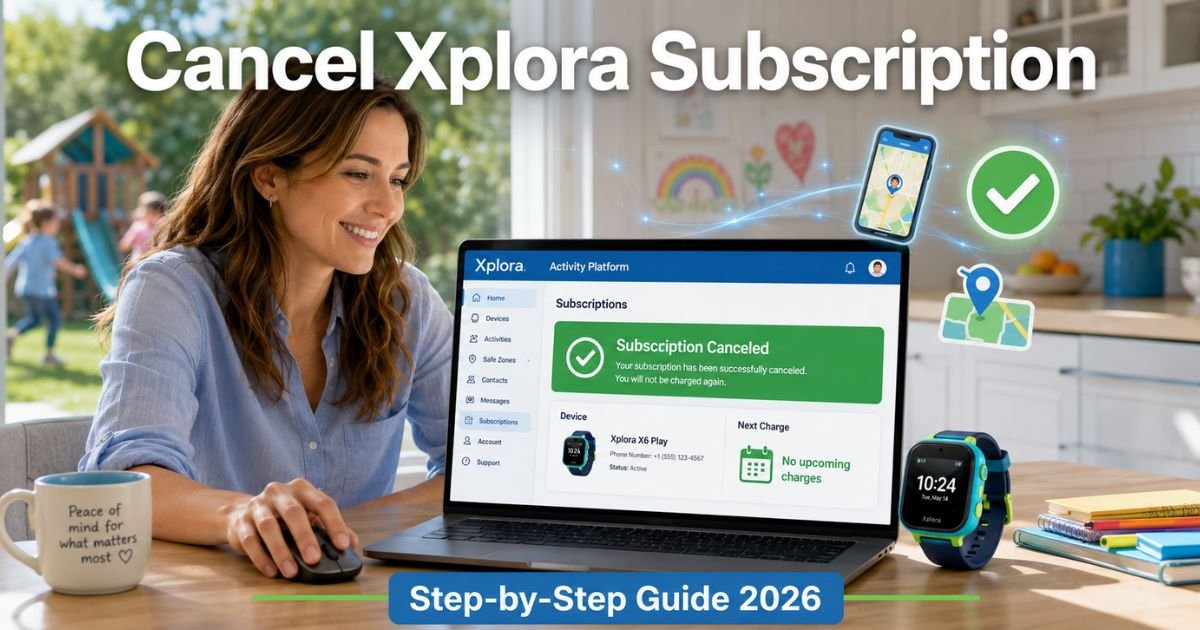
1. Log into the Activity Platform
- Go to goplay.myxplora.com (the Activity Platform)
- Sign in with the same parent phone number or email you used when you first set up the watch
2. Manage your subscription
- Once logged in, click Manage Subscription in the menu
- Scroll past Payment Plan and Payment Method
- Look for the Cancel Premium Subscription button (or similar for your Xplora Connect plan)
- Select the child’s account if you have multiple watches
- Confirm your choice
You’ll keep full access until the end of your current billing cycle.
3. Contact support if needed
Can’t find the option or want help right away? Reach out to the team.
Email support@xplora.com with a clear subject like “Cancel Xplora Subscription – [Your Email]”.
In the body, write something simple: “Hi team, I’d like to cancel my Xplora Connect / Premium subscription for [child’s name or IMEI]. My account is [your email or phone]. Thank you!”
US phone support is available Monday–Friday 10:00am–6:00pm EST at +1 478 606 0554. They usually respond fast.
4. Confirm cancellation
You’ll get an email confirmation. Your watch will switch to limited mode (no cellular service) once the cycle ends unless you restart.
Pro Tip: Cancel at least 5–7 days before your renewal date. This way you still enjoy the rest of your paid period and avoid any accidental next-month charge.
Real-World Example
Take a 33-year-old mom of two in Seattle. She got her 8-year-old son an Xplora watch last year for school walks and sports. The GPS and calling features were great at first, but once summer hit and he started riding his bike with friends, she realized they didn’t need the full monthly service anymore.
She logged into the Activity Platform, went to Manage Subscription, and canceled the Premium add-on in under three minutes. She emailed support about the main Xplora Connect plan just to be safe. Within 24 hours everything was confirmed.
She saved over $140 a year and her son still uses the watch for offline step tracking and games.
What Happens After You Cancel Xplora Subscription
Here’s the straightforward part:
- You keep every feature until the end of your current billing cycle
- The subscription stops renewing automatically
- No more charges after that date
- The watch continues working offline for basic functions like step counting and alarms
Xplora built the system so you stay in control without losing what you already paid for.
How Refunds Work on Xplora Subscriptions
Xplora’s policy is clear: they don’t charge cancellation fees and generally don’t offer refunds for completed billing periods. However, if you were charged by mistake or have a specific issue, email support@xplora.com with your order details.
They review each case and many parents report fair resolutions, especially for recent charges.
Common Mistake: Some parents only delete the Xplora app or mute notifications instead of actually canceling the subscription. This still leaves billing active. Always go through the Manage Subscription section or contact support to fully stop charges.
Xplora Subscription Plans at a Glance
Here’s a quick look at the main plans so you know exactly what you’re pausing:
| Plan Type | Monthly Price | Yearly Price (with discount) | What You Get | Best For |
|---|---|---|---|---|
| Xplora Connect | $12.00 | ~$115 (20% off) | Unlimited talk, text, data + basic GoPlay | Everyday safety & calls |
| Premium Add-On | Varies | Varies | Extra games, ringtones, educational tools | Active kids who love rewards |
| Multi-Device Bundle | Custom | Custom | Covers multiple watches | Families with 2+ kids |
Prices current as of 2026. Check your account for exact rates.
Tips to Manage Your Family Tech Subscriptions Smarter
Canceling your Xplora subscription is a smart first step toward better budgeting. Try these three habits many parents use:
- Set a calendar reminder 10 days before every renewal date.
- Use a free app like Rocket Money to track all family subscriptions in one place.
- Review your kids’ tech needs every six months, most families drop one or two services and save $150+ a year.
You’ll feel lighter and more organized almost immediately.
Troubleshooting Common Xplora Cancellation Issues
Can’t find the Activity Platform login?
Use the same phone number or email from setup.
Subscription not showing?
Make sure you’re logged in with the guardian account that made the purchase.
Still seeing charges?
Forward the receipt to support@xplora.com, they fix billing errors quickly.
Watch still connected?
It will switch to offline mode automatically after the cycle ends.
Why Xplora Makes Cancellation Straightforward
Unlike some tech companies that hide cancel buttons, Xplora focuses on happy families. They want you to come back when the time is right instead of feeling locked in.
FAQs About How to Cancel Xplora Subscription
Q: How long does it take to cancel Xplora subscription?
Most parents finish in under five minutes using the Activity Platform. If you email support@xplora.com, expect confirmation within 24–48 hours during business days.
Q: Can I get a refund after canceling my Xplora subscription?
Generally no for completed periods, since there are no cancellation fees. However, support may review and resolve recent accidental charges. Reach out to support@xplora.com with your details.
Q: What’s the difference between canceling Premium and the Xplora Connect plan?
Premium cancels extra Activity Platform features while the main Connect plan handles cellular service. You can cancel one or both through Manage Subscription or by contacting support.
Conclusion
Canceling your Xplora subscription is quick, simple, and totally in your hands. Whether you use the Activity Platform or reach out to the friendly support team, you’ll stop future charges while keeping everything you already paid for.
You now have the exact steps, what to expect, and smart tips to handle it confidently. Go ahead and make the change, you and your family will feel the difference right away.
If your needs change later, Xplora will still be there with the same great watches and easy options.
Disclaimer: This content is for informational and educational purposes only and does not constitute professional, financial, legal, or medical advice. The information provided may not apply to your specific situation. Always consult a qualified professional for personalized guidance.