How to Cancel Subscriptions on Samsung TV [Step by Step]

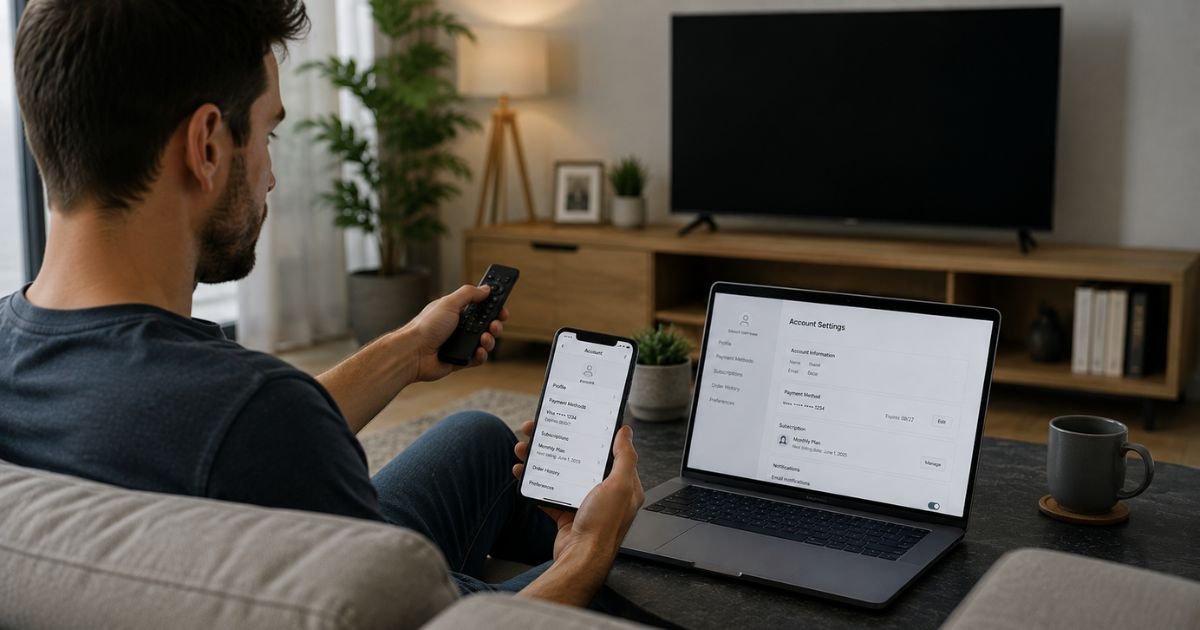
Samsung Smart TVs let you subscribe to apps and services through the Samsung Account and Samsung Checkout payment system. This can include certain streaming channels, art stores, or other content partners billed via Samsung.
Many popular apps like Netflix or Disney+ are often billed separately by the service itself.
Charges typically appear under Samsung or the specific service name on your statement.
Deleting an app from the TV or signing out of your Samsung Account does not cancel any subscription. You must turn off auto-renewal in the correct place.
This guide covers the main official paths so you can stop future charges.
Quick answer
For subscriptions billed through Samsung, go to Settings on your TV, open your Samsung Account, then Payment Info or Subscriptions, and unsubscribe. You can also cancel at samsungcheckout.com. Third-party services usually need cancellation on their own website or original billing platform. Access generally continues until the end of the paid period.
What Is a Samsung TV Subscription and How Billing Works
Samsung TVs use the Smart Hub and Samsung Account for many features. When you subscribe to certain content through the TV, payment often goes through Samsung Checkout linked to your Samsung Account. Other apps bill you directly or through Apple, Google, or another provider.
Billing is recurring until canceled. Exact costs depend on the specific service and plan. Menu paths can vary slightly by TV model year and software version. Always sign in with the same Samsung Account used for the purchase.
Signing out of the account on the TV or removing the account from the device does not cancel active subscriptions.
How to Cancel Through Your Samsung Account on the TV
Use these steps for subscriptions managed by Samsung Checkout. Paths differ by model year.
For most 2017–2026 models:
- Press the Home or Settings button on your remote.
- Go to Settings > General > System Manager (or similar) > Samsung Account.
- Sign in if needed.
- Select My Account.
- Select Payment Info.
- Select Subscriptions (on 2019–2026 models) or Purchase History (on some earlier models).
- Highlight the subscription you want to cancel and select the unsubscribe or cancel option.
- Confirm.
If Payment Info or Subscriptions does not appear, update the TV software under Support > Software Update and try again.
For older models (around 2015–2016), the path is usually Settings > System > Samsung Account or Menu > Smart Hub > Samsung Account, then look for payment or purchase history options.
How to Cancel on the Samsung Checkout Website
This works from any computer or phone browser and is often easier.
- Go to www.samsungcheckout.com.
- Sign in with the same Samsung Account used on the TV.
- Open the Purchase History or Subscriptions section.
- Find the active subscription.
- Select Unsubscribe or Cancel Subscription and confirm.
Some Samsung screens also offer a Subscription Hub at subscriptionhub.samsung.com where you can manage and cancel from a list of Samsung Checkout services.
Canceling Third-Party App Subscriptions (Netflix, Disney+, etc.)
Many streaming apps are not billed through Samsung even if you opened them on the TV.
Check the app’s account page or your original payment method. If the charge comes from Netflix, Disney, Apple, Google, or another provider, cancel there instead.
- Log into the service’s website on a computer or phone.
- Go to Account or Membership settings.
- Follow that service’s cancel steps.
Uninstalling the app from your Samsung TV only removes the icon. It does not stop the billing.
What Happens After You Cancel
For Samsung Checkout subscriptions, canceling stops future automatic charges. You typically keep access until the end of the current billing period you already paid for. After that the service deactivates.
Refunds for the remaining time are generally not automatic. Policies vary by the specific service and region. Check the confirmation screen or email for the exact end date.
Your Samsung Account and other apps remain available. Signing out later does not affect a canceled subscription.
Tips for a Smooth Cancellation
Confirm the billing source first. Look at your bank or card statement for “Samsung,” the app name, or another company.
Update your TV software before starting if menus look incomplete. Use the same Samsung Account on both the TV and the website.
Cancel a few days before the renewal date when possible. Keep a screenshot or email confirmation.
If the subscription does not appear on the TV or website, it may be billed elsewhere. Check the individual app’s account settings.
Common Problems and Solutions
You cannot find Subscriptions or Payment Info. Update the TV software and sign in again with the correct Samsung Account. Try the website method instead.
Signing out of the Samsung Account did nothing to the charges. That only removes the account from the TV. Cancel the subscription separately through Payment Info or samsungcheckout.com.
The subscription still charges after canceling. Confirm the cancellation completed and check the end date. Contact Samsung support or the original billing provider if a later charge appears.
The app is gone but billing continues. Uninstalling never cancels. Return to the Samsung Account payment section or the service’s own cancel page.
FAQs About Canceling Subscriptions on Samsung TV
Q: Does deleting an app from my Samsung TV cancel the subscription?
No. Deleting or removing the app only clears it from the home screen or Apps list. You must cancel through Samsung Account Payment Info, samsungcheckout.com, or the original billing platform.
Q: Does signing out of my Samsung Account cancel subscriptions?
No. Signing out or removing the account from the TV does not stop recurring charges. Cancel the subscription first using the steps above.
Q: What if my subscription does not show under Samsung Payment Info?
It was likely billed directly by the app provider or another platform such as Apple or Google. Cancel on that service’s website or account settings instead.
Q: Will I keep access after canceling on a Samsung TV?
Yes, in most cases you keep access until the end of the current paid period. After that date the service typically stops. Check the confirmation for the exact end date.
Conclusion
Canceling subscriptions on a Samsung TV depends on whether Samsung Checkout handles the billing. Use the Samsung Account Payment Info section on the TV or visit samsungcheckout.com to unsubscribe. For most major streaming services, cancel on their own website or the original payment method.
Always verify the charge source and confirm the cancellation. Your access usually continues until the paid period ends, and future automatic charges stop. If menus differ or the subscription is missing, update the TV software or contact Samsung support for account-specific help.
Disclaimer: This article offers general educational information based on publicly available details from Samsung’s official support and Checkout pages at the time of writing. It is not financial or legal advice. Menu paths, cancellation options, and policies can vary by TV model, software version, region, and specific service. Contact Samsung support or the billing provider for help specific to your account and subscriptions.