How to Cancel GitHub Copilot Subscription? [Step by Step]

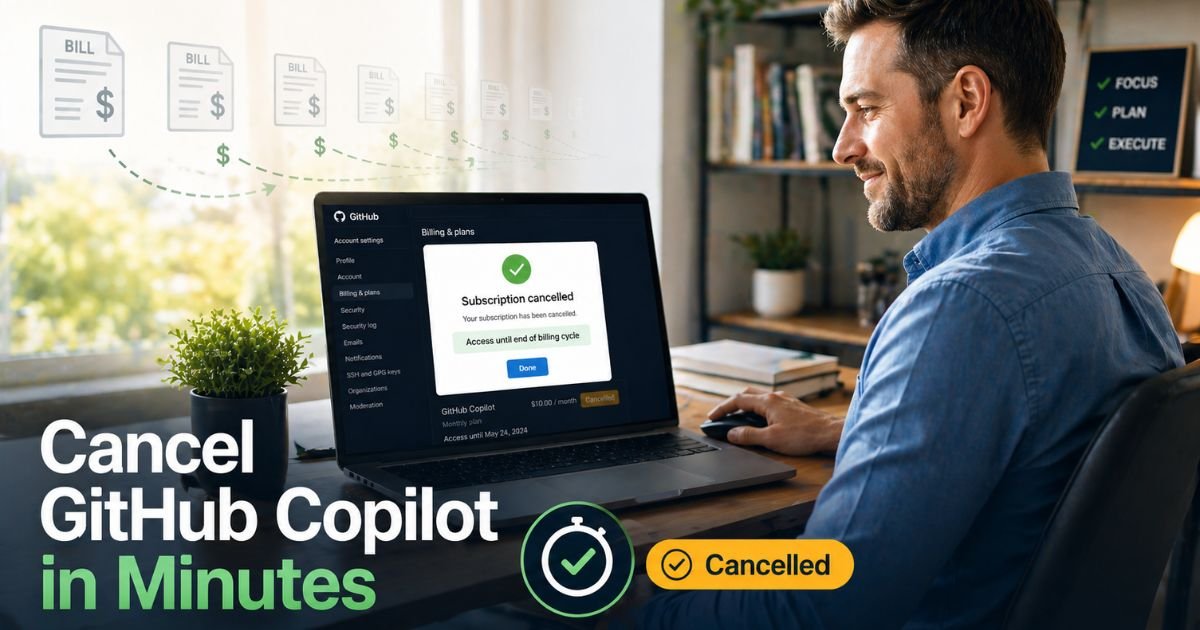
You open your bank statement or credit-card app and there it is again—that monthly GitHub Copilot charge you no longer need. Maybe you tried the free version, or your job now provides it through work. Either way, you’re ready to cancel but can’t find the button. Sound familiar?
You’re not alone. Thousands of developers and professionals hit the same wall every month trying to cancel GitHub Copilot subscription charges. The good news? It’s actually straightforward once you know where to look.
We’ll walk you through the exact steps to cancel your GitHub Copilot subscription safely and quickly—whether you have Copilot Pro, Pro+, or an older plan. You’ll learn what happens after cancellation, how to avoid common mistakes, and how to confirm the charge stops.
Why People Cancel GitHub Copilot
GitHub Copilot is a powerful AI coding assistant, but it’s not free forever. Many users start with a trial or Pro plan at around $10–$39 per month (depending on Pro or Pro+ tier) and later realize they don’t use it enough to justify the cost.
Others switch to a company-provided Copilot Business plan or simply prefer the free tier for occasional coding. Whatever your reason, canceling is your right—and it’s easier than most people expect.
Bottom line: Canceling GitHub Copilot subscription charges puts money back in your pocket without losing access right away.
How to Cancel Your GitHub Copilot Subscription
GitHub made the process simple and web-based. You only need to be logged into your personal GitHub account. Here’s exactly what to do:
- Go to github.com and click your profile picture in the upper-right corner.
- Choose Settings.
- In the left sidebar under the “Access” section, click Billing & licensing, then Licensing (this is the current 2026 layout).
Older accounts may see “Billing and plans” → “Plans and usage” instead. - Scroll to the GitHub Copilot section.
- Click the Manage subscription dropdown on the right.
- Select Cancel subscription.
- Choose Cancel Copilot Pro+ / Copilot Pro and confirm.
You’ll get an on-screen confirmation and an email from GitHub. Your paid access continues until the end of the current billing cycle, then you automatically drop to Copilot Free.
What If You’re on a Copilot Business or Organization Plan?
If your subscription is tied to a company or organization:
- You can’t cancel it from your personal settings.
- Ask your organization owner to remove your assigned seat in their Org Settings → Billing & licensing.
Once the seat is removed, your personal billing stops.
Pro Tip: Take a screenshot of the cancellation confirmation screen and note the date. This tiny step saves hours if you ever need to dispute a charge with your bank.
What Happens After You Cancel
Here’s the timeline so you know exactly what to expect:
| Stage | What Happens | When |
|---|---|---|
| Immediate | Cancellation confirmed; you keep full paid features | Right after you click confirm |
| End of billing cycle | Access switches to Copilot Free automatically | On your next renewal date |
| Next payment | No more charge appears on your card | Following billing date |
| Refunds (if eligible) | Possible for remaining days before May 20, 2026 | Contact support within window |
Source: Official GitHub support pages, April 2026.
Take a 39-year-old accountant and weekend coder in Bangalore. She signed up for Copilot Pro during a busy project but realized she only used it twice a month. She followed the steps above on a Tuesday morning, got the confirmation email, and saved $120 a year—money she now uses for her daughter’s coding classes.
Common Issues When Canceling GitHub Copilot
Sometimes the “Cancel” button seems hidden or you still see charges. Here are the fixes:
- Can’t find the option? Make sure you’re on the personal account (not logged into an organization). Try the direct link: github.com/settings/billing/licensing.
- Still being charged? Check your email for the cancellation receipt. It can take one billing cycle to fully process.
- Organization seat conflict? Your personal plan auto-cancels when added to a company plan—double-check your org memberships.
Common Mistake: Trying to cancel through Microsoft account settings instead of GitHub. GitHub Copilot is billed separately from Microsoft Copilot Pro. Always use GitHub.com settings or you’ll keep getting charged.
How to Check Your Billing and Confirm Cancellation
After canceling:
- Go back to Settings → Billing & licensing → Payment history.
- Look for a “Cancelled” status next to GitHub Copilot.
- Save the confirmation email in a folder called “Subscriptions Cancelled.”
This quick double-check gives you peace of mind and proof if anything goes wrong.
FAQs About How to Cancel GitHub Copilot Subscription
Q: How long does it take to cancel GitHub Copilot subscription?
It takes less than two minutes to complete the steps on GitHub’s website. Your paid access ends on your next billing date, so you won’t lose any days you’ve already paid for.
Q: Can I cancel GitHub Copilot subscription and still use the free version?
Yes! After cancellation you automatically switch to Copilot Free. You keep basic AI suggestions without the monthly fee.
Q: Will I get a refund if I cancel GitHub Copilot mid-month?
Usually no prorated refund unless you’re within the short window for new changes (before May 20, 2026). For a possible refund, contact GitHub Support directly after canceling.
Q: What if I can’t find the cancel button for my GitHub Copilot subscription?
Double-check you’re in personal Settings → Billing & licensing → Licensing. If you’re part of a company plan, ask your org admin to remove your seat instead.
Q: Is canceling GitHub Copilot subscription different for students or open-source maintainers?
Free access granted to verified students or popular maintainers can’t be “canceled” because it’s already free. Just disable Copilot in your editor settings if you don’t want it.
Conclusion
Canceling your GitHub Copilot subscription is one of the easiest ways to stop unwanted monthly charges. You now have the exact steps, timeline, and troubleshooting tips to do it confidently.
Go ahead—open GitHub, follow the guide, and watch that charge disappear next month. While you’re at it, scan your statements for other subscriptions you’ve outgrown. Every dollar you keep is money you can spend on things that actually matter to you.
Disclaimer: The content on CancelSubscription.net is for informational and educational purposes only and does not constitute financial, legal, or professional advice. We are not affiliated with any companies or services mentioned. Cancellation steps and policies can change at any time. Always verify the latest process directly on the company’s official website or app. If you suspect unauthorized or fraudulent charges, contact your bank or credit card issuer immediately.