
Google Ad Hoc Labs Charge on Credit Card [Identified]

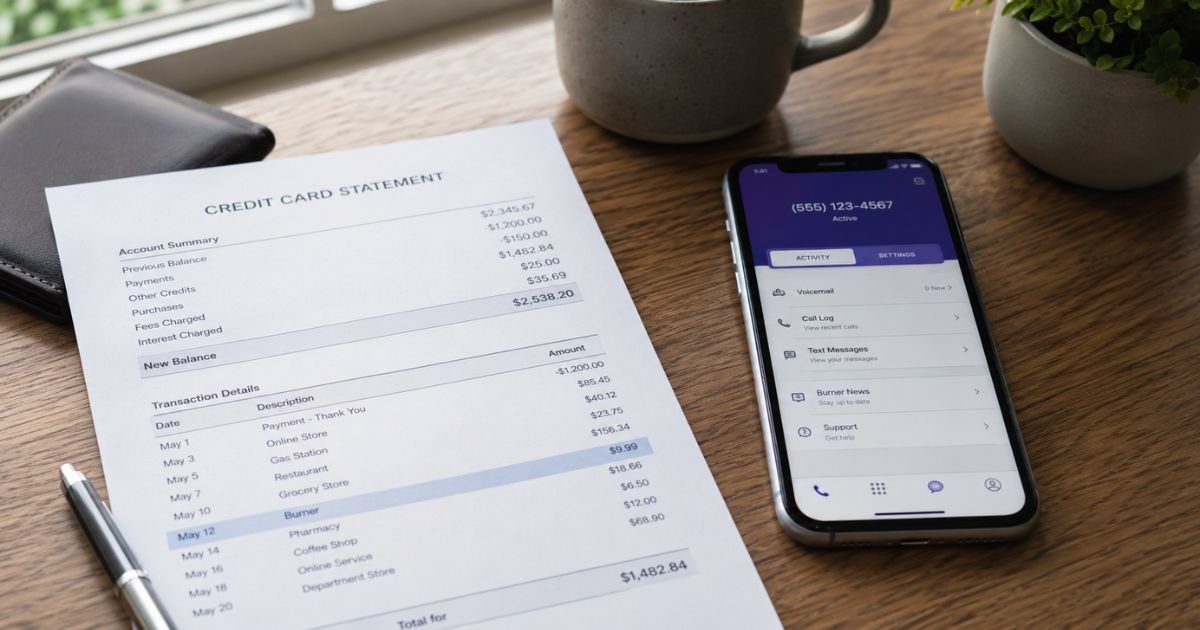
Seeing an unexpected “Google Ad Hoc Labs” charge on credit card statement can feel confusing. You might wonder if it’s a Google Ads bill, a scam, or something you accidentally signed up for.
This guide walks you through exactly what the charge is, how to confirm it, and the steps to cancel or dispute it if you don’t recognize it.
Quick Answer
A Google Ad Hoc Labs charge on credit card is almost always a purchase or subscription for the Burner app (a temporary second phone number service) bought through the Google Play Store.
Google lists these charges as “GOOGLE *Ad Hoc Labs.” Check your Google Play subscriptions or Burner account to confirm and cancel if needed.
What Is Google Ad Hoc Labs?
Ad Hoc Labs is a small software company based in Los Angeles. They develop tools that help people control their communications. Their best-known product is the Burner app.
Burner lets you create temporary phone numbers for texting and calling. People use it for online dating, selling items, temporary work numbers, or keeping their real number private. The app is available on both Android and iOS.
When you pay for Burner through the Google Play Store (in-app purchases or subscriptions), Google processes the payment.
On your credit or debit card statement, the charge appears as “GOOGLE Ad Hoc Labs,” “GOOGLE Ad Hoc Labs,” or a similar variation. This follows Google’s standard naming for Play Store purchases: “GOOGLE” followed by the app developer’s name.
Why Does the Charge Appear on Your Credit Card?
Google Play routes all app payments through its billing system. Even though you bought something from Ad Hoc Labs, the money first goes through Google. That’s why the merchant name starts with “Google.”
Common reasons you see the charge include:
- You or someone with access to your Google account subscribed to Burner.
- You started a free trial that converted to a paid plan.
- An automatic renewal went through.
- A one-time purchase of extra numbers or features.
Burner offers weekly, monthly, and yearly plans. Prices typically start around a few dollars for short-term numbers and go higher for longer or unlimited plans. Exact amounts vary based on what you selected.
How to Confirm the Charge Belongs to You
Follow these steps to verify the charge:
- Open the Google Play Store app on your Android phone or go to play.google.com on a computer.
- Tap your profile picture, then select “Payments & subscriptions” or “Subscriptions.”
- Look for “Burner” or “Ad Hoc Labs.”
- Check the Google Payments Center at pay.google.com. Sign in and review recent transactions.
- Search your email for receipts from “Burner,” “Ad Hoc Labs,” or Google Play.
If you find the subscription, the charge is legitimate. If nothing appears, someone else may have used your card or Google account.
How to Cancel a Burner Subscription
You can stop future charges in a few places depending on how you paid.
If you paid through Google Play:
- Open Google Play Store → profile icon → Payments & subscriptions → Subscriptions.
- Find Burner and select Cancel subscription.
- Confirm the cancellation. You keep access until the end of the current billing period.
If you paid directly on the Burner website:
- Log in at app.burnerapp.com using the phone number linked to your account.
- Go to account settings and cancel the plan.
After canceling, watch your next statement to make sure no new charges appear.
What to Do If You Don’t Recognize the Charge
First, rule out family members or shared devices. Kids or partners sometimes make in-app purchases without realizing it.
If the charge is still unknown:
- Contact your bank or credit card company right away and report it as unauthorized. Ask them to place a temporary block if needed.
- Change your Google account password and turn on two-factor authentication.
- Review all payment methods saved in your Google account and remove any you don’t recognize.
- Reach out to Burner support. Provide the date, amount, and a screenshot of the charge (hide full card numbers). Their support page explains how to handle unrecognized charges.
Google also offers a process for reporting unauthorized Play Store purchases. You can start at the Google Payments Center or the unauthorized transactions form.
Common Mistakes People Make
- Ignoring the charge because the amount is small. Small recurring fees can add up.
- Assuming every Google charge is Google Ads. Google Ads charges look different (often “GOOGLE *ADS” or similar).
- Trying to cancel only through the Burner app without checking Google Play. Subscriptions bought in the store must be canceled there.
- Waiting too long to dispute. Most banks give you 60 days from the statement date to report fraud.
Tips to Avoid Surprise App Charges
- Review your Google Play subscriptions once a month.
- Turn off “Require authentication for purchases” only if you fully trust everyone who uses the device.
- Use a virtual card or secondary card for app trials.
- Read the fine print on free trials. Many convert automatically after a few days.
- Enable purchase notifications in the Google Play app so you get an alert for every charge.
How Google Play Charges Appear on Statements
Google uses consistent but slightly varied descriptors. You might see:
- GOOGLE *Ad Hoc Labs
- GOOGLE*Ad Hoc Labs followed by a date or numbers
- GOOGLE *Ad Hoc Labs 650-253-0000 CA (or similar location codes)
These are normal. The “Google” prefix simply means the payment went through Google’s system.
Conclusion
A Google Ad Hoc Labs charge on credit card is almost always a legitimate payment for the Burner app processed through the Google Play Store. By checking your Google account subscriptions and Burner login, you can quickly confirm the source.
If the charge is unexpected, cancel the subscription and contact your bank if needed. Taking a few minutes to review your app subscriptions regularly keeps these surprises from happening again.
FAQs About Google Ad Hoc Labs Charge on Credit Card
Q: Is the Google Ad Hoc Labs charge a scam?
No. It is the normal billing descriptor used when you buy or subscribe to the Burner app through Google Play. Scammers rarely use this exact name.
Q: Can I get a refund for a Burner charge?
Google Play offers refunds on many purchases if you request them soon after the charge. Open the Play Store, go to your order history, and request a refund. Burner’s own support can also help in some cases.
Q: Why does it say Google instead of Burner?
Google processes all Play Store payments. The statement shows “GOOGLE” plus the developer name (Ad Hoc Labs) so you know both the platform and the company.
Q: How do I stop future Google Ad Hoc Labs charges?
Cancel the Burner subscription in Google Play or at app.burnerapp.com. After cancellation, no new charges should appear.
Disclaimer: This article is for informational purposes only and does not constitute financial, legal, or professional advice. Always verify charges with your bank, Google, or the merchant. Billing descriptors and policies can change.


