How to Cancel Home AI Subscription? [Step by Step]

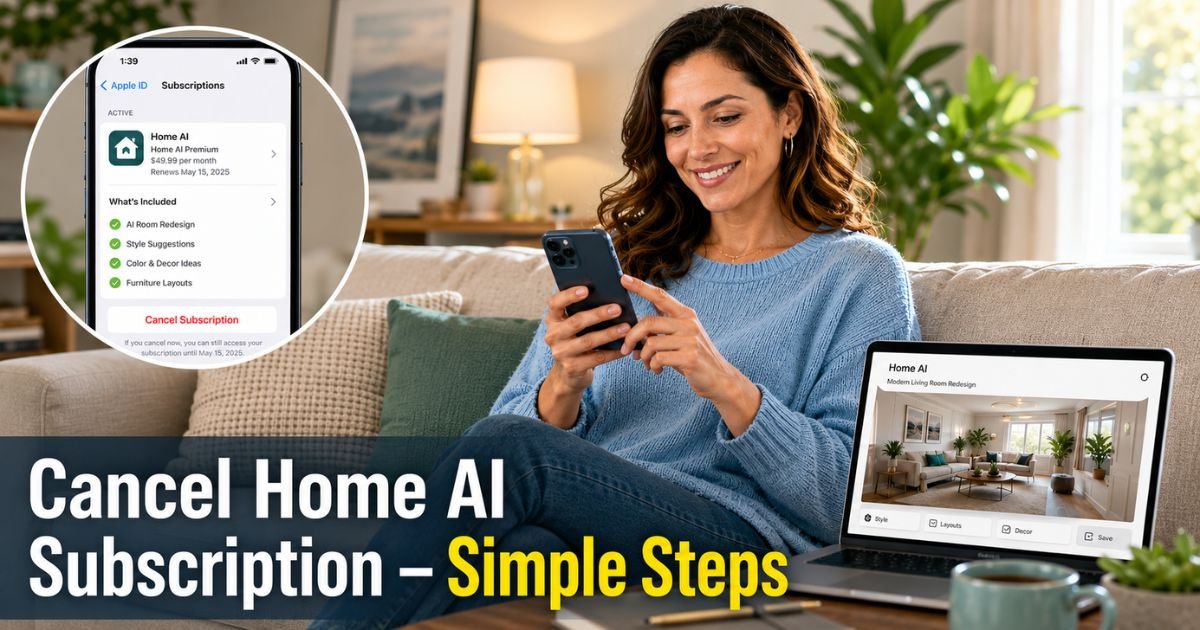
You tried Home AI to quickly redesign your rooms with AI and loved seeing the possibilities, but now the subscription feels like more than you need.
If you want to know exactly how to cancel Home AI subscription and put an end to the automatic charges, this guide gives you the straightforward steps that work. Many people feel stuck at first because the cancel option lives outside the app itself.
Home AI subscriptions are managed through your device’s app store for security and simplicity. In the next few minutes you will learn the precise process for both iPhone and Android users, what happens after you cancel, and smart tips to make the process smooth.
How to Cancel Home AI Subscription
How to Cancel Home AI Subscription on iPhone
If you signed up through the Apple App Store, you handle everything in your iPhone Settings. This keeps your payment details secure in one trusted place.
Here are the exact steps to follow:
- Open the Settings app on your iPhone or iPad.
- Tap your name at the very top of the screen.
- Scroll down and tap Subscriptions.
- Find Home AI in your list of active subscriptions and tap it.
- Tap Cancel Subscription at the bottom and confirm your choice.
Apple sends a confirmation email right away. Screenshot the final screen showing the canceled status before you close it. Your premium access to Home AI continues until the end of the current billing period, so you do not lose anything immediately.
How to Cancel Home AI Subscription on Android
Android users manage cancellations through the Google Play Store. The steps feel familiar if you have canceled other apps before.
Follow these steps in order:
- Open the Google Play Store app on your phone.
- Tap your profile picture in the top right corner.
- Select Payments & subscriptions, then tap Subscriptions.
- Locate Home AI in the list and tap it.
- Choose Cancel subscription and follow the on-screen prompts to confirm.
Google sends an instant confirmation email. You keep full access to your designs and features until your paid period ends. If the subscription does not appear, switch to the Google account you originally used to subscribe.
What Happens After You Cancel Home AI Subscription
You continue enjoying premium features until the very last day of your current billing cycle. After that date the app reverts to any free version or limited functionality. Auto-renewal turns off immediately, so no future charges hit your card or Apple Pay.
Home AI’s terms state that cancellations happen through the app store and they generally do not issue partial refunds for unused time. If you purchased directly through their website instead of an app store, check your account login or contact their support for specific instructions.
Example
Meet Emily, a busy homeowner in Seattle who used Home AI to visualize a kitchen refresh before hiring contractors. The subscription helped her experiment with layouts and colors quickly. Once the project wrapped up and her budget tightened, she decided it was time to cancel.
Emily checked her email receipt, confirmed she had subscribed through the Apple App Store, and followed the iPhone steps above. She canceled five days before renewal, received instant confirmation, and kept access for the rest of the month. She saved the money for other home updates and still feels good about the designs she created while subscribed.
Pro Tip: Cancel at least 24 to 48 hours before your renewal date to avoid any risk of being charged for the next period. Set a simple phone reminder so the task does not slip your mind during a busy week.
Home AI Subscription Cancellation Options at a Glance
| Purchase Method | Where to Cancel | What You Need | What Happens After Cancel |
|---|---|---|---|
| iPhone / iPad | Settings > [Your Name] > Subscriptions | Apple ID login or Face ID | Access until end of paid period |
| Android Phone | Play Store > Profile > Payments & subs | Google account login | Access until end of paid period |
| Website (if direct) | Account login on homeinterior.ai | Website email and password | Check account or contact support |
| Subscription not found | Device settings or support contact | Old receipt or screenshots | Support can help locate the correct plan |
Common Mistake: Looking for a cancel button inside the Home AI app itself. Most of the time the option does not exist there because billing runs through Apple or Google. Always go to your device settings or account page first before reaching out to support.
Extra Tips to Manage Your Home AI Subscription
- Check your email inbox and spam for the original purchase confirmation so you know exactly which platform billed you.
- Take screenshots of every confirmation screen and save the emails for your records.
- Review your bank or credit card statements for the next billing cycle to confirm no unexpected charges appear.
- If you ever want to restart using Home AI later, you can resubscribe through the same method whenever you like.
FAQs About How to Cancel Home AI Subscription
Q: Can I cancel Home AI subscription directly inside the app?
No, you usually cannot cancel from within the Home AI app. Subscriptions are managed through Apple, Google Play, or your website account settings. Use the steps for your specific purchase method instead.
Q: Will I get a refund after I cancel Home AI subscription?
Most cancellations do not include refunds for unused time because you keep access until the end of your paid period. Website purchases may have different policies, so check your account or contact support if you believe you qualify for an exception.
Q: What happens to my saved designs after I cancel?
Your previously generated room designs usually remain available in your account even after the subscription ends, though you may lose access to new premium generations or advanced features. Log back in anytime to review what you created.
Conclusion
Canceling your Home AI subscription takes just a few minutes once you know to check your device’s app store settings. Follow the steps for your platform, confirm everything with screenshots, and keep an eye on your statements for complete peace of mind.
You can always resubscribe later if another home project sparks your creativity. Take a few minutes today to review this and any other subscriptions so your spending stays aligned with what you truly use and enjoy.
Disclaimer: This content is for informational and educational purposes only and does not constitute professional, financial, legal, or medical advice. The information provided may not apply to your specific situation. Always consult a qualified professional for personalized guidance.