You signed up for Coursera with big goals in mind. Maybe it was Coursera Plus for unlimited courses, a Professional Certificate to boost your resume, or a Specialization that seemed perfect at the time.
The flexible learning felt great, but now the monthly or annual charge keeps hitting your card and you’re ready to pause or stop completely. If you’re searching for exactly how to cancel Coursera subscription, you’re in the right place.
Thousands of learners reach this point every month. Life gets busy, goals shift, or you simply found everything you needed already. The good news is Coursera makes cancellation straightforward once you know the right clicks.
This guide walks you through every method, whether you subscribed directly on the website, through the iPhone app, or on Android.
Why People Decide to Cancel Coursera Subscription
Coursera offers incredible courses from top universities and companies, and for many it’s a game-changer. But circumstances change. Some finish their certificate and no longer need unlimited access.
Others realize the cost adds up after the intro pricing ends. Whatever your reason, canceling is simple and you won’t lose anything you’ve already paid for.
Here are the most common reasons learners choose to cancel:
- Completed the course or certificate you signed up for
- Budget tightening or shifting priorities
- Found free alternatives or in-house company training
- Traveling or taking a break from structured learning
The key thing to remember? You keep full access until the very end of your current billing period.
How Coursera Subscriptions Actually Work
Before you cancel Coursera subscription, it helps to understand the setup. Most plans (Coursera Plus monthly or annual, plus individual Specializations) use auto-renewal. You get a set period of access, and it automatically charges again unless you stop it.
Cancellation takes effect at the end of your current cycle. That means no surprise cutoff on the day you cancel, you continue learning until the last day you’ve already paid for. After that, you drop to free limited access or lose premium features completely.
Always check your renewal date in your account so you time things perfectly.
Pro Tip: Take screenshots of every step, including your confirmation message and email. This quick habit gives you solid proof if any billing questions pop up later with your bank or credit card.
How to Cancel Coursera Subscription on the Website (Fastest Method)
The easiest route for most people is right on Coursera.org. Here’s the exact process:
- Go to coursera.org and sign in with your usual email and password.
- Click your profile picture or initials in the top right corner.
- Select “My Purchases” from the dropdown menu.
- Switch to the “Subscriptions” tab at the top.
- Find your active Coursera Plus or Specialization subscription.
- Click the “Cancel Subscription” button next to it.
- Follow the short prompts, choose a reason if asked, and confirm.
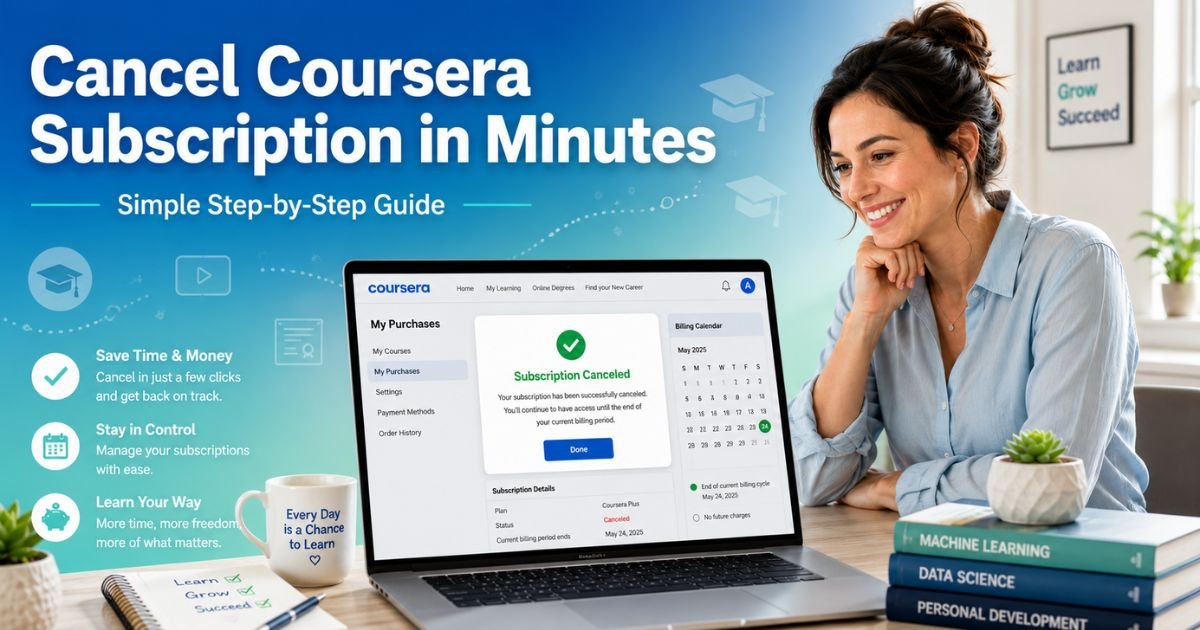
You’ll see an instant success message on screen and receive a confirmation email within minutes. Super simple and done in under three minutes for most users.
Cancel Coursera Subscription on iPhone or iPad
If you signed up through the Apple App Store, you must cancel directly with Apple:
- Open the Settings app on your iPhone or iPad.
- Tap your name at the very top.
- Tap “Subscriptions.”
- Find Coursera or Coursera Plus in the list.
- Tap “Cancel Subscription” at the bottom and confirm your choice.
Apple processes it immediately. The Coursera website can’t touch app-store subscriptions, so always check here first if you downloaded the app to join.
Cancel Coursera Subscription on Android Devices
For Google Play Store purchases:
- Open the Google Play Store app.
- Tap your profile picture in the top right.
- Choose “Payments & subscriptions” then tap “Subscriptions.”
- Select Coursera and tap “Cancel subscription.”
- Follow the on-screen prompts to confirm.
Quick and handled completely by Google.
Common Mistake: A surprising number of people simply delete the Coursera app or log out thinking that stops the charges. It doesn’t. You have to cancel the subscription separately through the website or your phone’s settings, or the billing will keep rolling.
Comparison of Cancellation Methods
Here’s a handy table to help you pick the fastest route based on how you signed up:
| Method | Best For | Time Required | Needs Login? | Access Until End of Cycle? |
|---|---|---|---|---|
| Website (My Purchases) | Direct Coursera sign-up | 2–3 minutes | Yes | Yes |
| iPhone Settings | Apple App Store purchases | 1–2 minutes | No | Yes |
| Android Google Play | Google Play purchases | 1–2 minutes | No | Yes |
| Contact Support | Issues logging in | 5–10 minutes | Yes | Yes |
Real-World Example
Take a 34-year-old software engineer from Chicago. He jumped into Coursera Plus during a big career push and completed three Professional Certificates in just four months. The skills were fantastic, but once he landed the promotion he wanted, the monthly fee felt unnecessary.
One evening after work, he logged into his account, went to My Purchases, clicked the Subscriptions tab, and canceled in under three minutes.
He kept full access for the rest of the month to finish one last module, then switched to free YouTube tutorials and LinkedIn Learning through his job. He saved over $400 a year and still keeps growing his skills on his own schedule.
What Happens After You Cancel Coursera Subscription?
Once you confirm cancellation:
- No more future charges.
- You retain complete premium access until the exact end of your current billing period.
- After that, you’ll see limited free courses or a paywall on paid content.
Most learners finish any in-progress work during that final period, then uninstall the app to keep things tidy.
Quick Next Steps After You Cancel
- Save your confirmation email in a dedicated folder.
- Double-check your payment methods in account settings.
- Mark your calendar for the final day so you’re not surprised.
How to Request a Refund After Canceling
Refunds aren’t automatic, but you may qualify within the first 14 days of your original payment for Coursera Plus or annual plans.
Here’s what to do:
- Cancel the subscription first using the steps above.
- Go back to My Purchases.
- Look for the “Request Refund” option on your recent payment.
- Submit the request, no extra explanation needed in most cases.
Approved refunds usually return to your original payment method within 7–10 business days. If you’re outside the 14-day window, contact Coursera support through the Help Center for special circumstances.
Troubleshooting: What If You Can’t Cancel Coursera Subscription?
Sometimes the cancel button doesn’t appear or the page looks different. Try these quick fixes:
- Log out and back in using a desktop browser instead of the mobile app.
- Clear your browser cache or try incognito mode.
- Make sure you’re looking under the “Subscriptions” tab (not “Courses”).
- Reach out to Coursera support through the Help Center chat or form if nothing works.
The support team is helpful and can usually resolve glitches fast.
Why Consider Free or Lower-Cost Learning Alternatives?
After you cancel Coursera subscription, you don’t have to stop learning. Plenty of strong free options exist: YouTube channels from the same universities, freeCodeCamp for tech skills, or even public library access to similar platforms. Many professionals mix and match these resources and still build impressive resumes without the monthly bill.
FAQs About How to Cancel Coursera Subscription
Q: How do I know my Coursera subscription is really canceled?
You’ll receive an email confirmation right after you confirm the steps. Log back into My Purchases and check the Subscriptions tab, it should show as canceled with your final access date clearly listed. If the email doesn’t arrive within 10 minutes, check your spam folder.
Q: Can I cancel Coursera subscription and still get a refund?
Yes, if you’re within the 14-day window from your original payment for Coursera Plus or annual plans. Cancel first, then submit a refund request directly in My Purchases. Most eligible requests are approved quickly with no extra questions asked.
Q: What happens if I cancel Coursera subscription right before my renewal date?
You’ll keep full access until the very last day of your current paid period. No extra charges will hit your card, and future billing stops completely. It’s actually one of the smartest times to cancel if you’re unsure about keeping the plan.
Conclusion
Canceling your Coursera subscription is quick, simple, and gives you back control without losing the time you’ve already invested. Whether you go through the website’s My Purchases page, your phone settings, or reach out to support, you now have every clear step you need.
Remember to cancel through the method that matches how you originally signed up, grab those screenshots, and request any refund you qualify for right away.
Take a few minutes today to handle it, finish strong on any remaining courses, and enjoy one less recurring charge each month. Your wallet and your future self will both thank you.
Disclaimer: This content is for informational and educational purposes only and does not constitute professional, financial, legal, or medical advice. The information provided may not apply to your specific situation. Always consult a qualified professional for personalized guidance.