How to Cancel HubWF App Subscription [Step by Step]

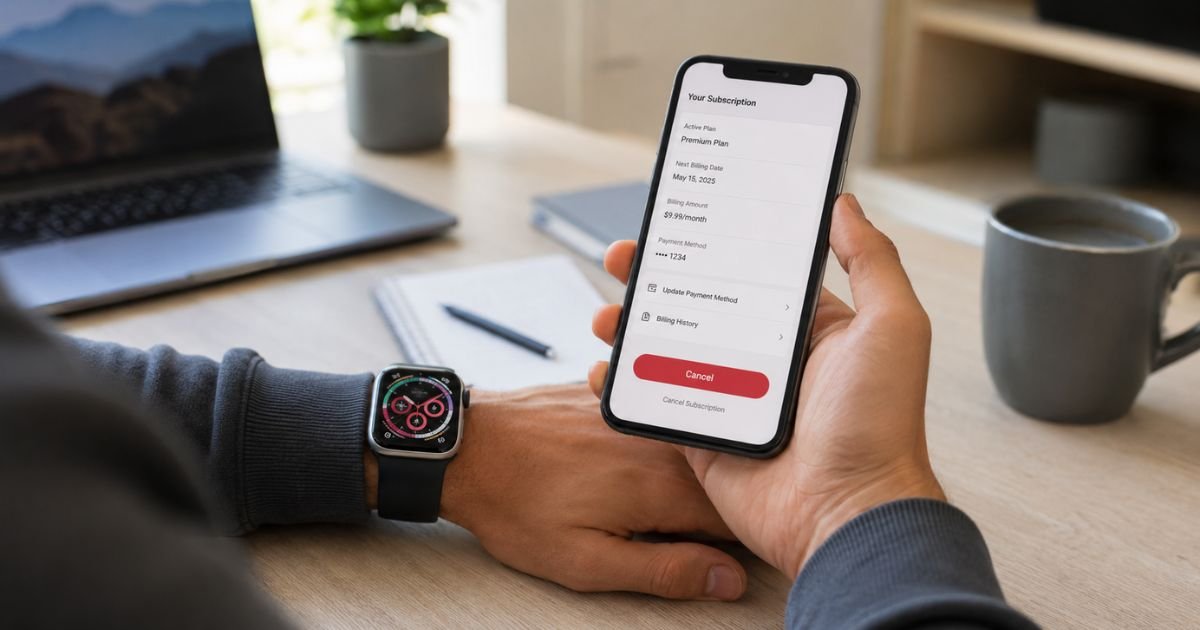
HubWF (also appearing as Nuvia Watch Faces or related brands on trhwatch.app and hubwf.app) is a service that sells customizable watch faces for Apple Watch. Many people sign up after seeing ads promising low intro prices, then discover automatic renewals and higher recurring charges.
If you’re seeing unexpected HubWF or similar charges on your card and want to stop them, this guide walks you through the exact cancellation steps, what happens next, and how to handle refunds or disputes.
What Is the HubWF App?
HubWF promotes collections of watch faces, styles, and widgets for Apple Watch. Sign-up often happens through a website after a short quiz or ad rather than directly inside the App Store. The service uses auto-renewing subscriptions. Uninstalling the app does not cancel billing.
Users frequently report that an advertised low price (sometimes under $5) converts to a higher monthly or weekly fee. Always check your email and bank statement for the exact merchant name and confirmation details before you start.
How to Cancel Your HubWF Subscription
The cancellation method depends on how you originally signed up.
Cancel Through the Official Website (Most Common Method)
- Open a browser and go to trhwatch.app/terminate or hubwf.app/manage-plan.
- Log in with the same email address you used when you paid or signed up.
- Look for the “Terminate Subscription,” “Cancel,” or “Manage Plan” option.
- Follow the on-screen prompts to end the plan.
- Complete the process at least 24 hours before your next renewal date. Otherwise you may still be charged for the upcoming period.
After you submit the request, you should receive confirmation by email. Keep a screenshot or copy of that confirmation.
Cancel If You Subscribed Through Apple
- Open the Settings app on your iPhone or iPad.
- Tap your name at the top.
- Tap Subscriptions.
- Find HubWF, Nuvia, or the matching watch-faces subscription.
- Tap it, then choose Cancel Subscription and confirm.
You keep access until the end of the current billing period.
Cancel If You Subscribed Through Google Play
- Open the Google Play Store app.
- Tap your profile icon.
- Go to Payments & subscriptions → Subscriptions.
- Select the HubWF or related subscription.
- Tap Cancel subscription and follow the prompts.
What Happens After You Cancel
Once cancellation is confirmed:
- Future automatic renewals stop.
- You normally keep access to the paid features until the end of the period you already paid for.
- No new charges should appear if you canceled more than 24 hours before renewal.
Uninstalling the app alone never stops billing. You must cancel through the website or the store where you subscribed.
How to Request a Refund
Refunds are not automatic and follow strict rules listed in the company’s money-back policy.
Eligibility usually requires:
- Contacting them within 30 days of the initial purchase and before the current period ends.
- Using the app for at least 7 consecutive days in the first 30 days.
- Providing proof of use.
To request a refund, email help@hubwf.app (some App Store responses also list help@appnuvia.com). Attach three photos of different watch faces installed on your wrist, taken on different days. Send the photos as email attachments, not through messaging apps.
Clearly state your order or payment details, the reason for the request, and that you want a refund. Keep copies of all emails.
If the company does not respond or refuses, move to the next step.
What to Do If You Cannot Cancel or Still Get Charged
- Search your email for confirmation messages from hubwf.app, trhwatch.app, Nuvia, or similar names. Note the exact charge dates and amounts.
- Contact your bank or credit-card issuer right away. Tell them the charge is recurring and you want to stop future payments and dispute any unauthorized or unexpected amounts. Many banks reverse charges while they investigate, especially if you act within 60 days of the statement date.
- Ask the bank to block future charges from the merchant.
- Document everything: screenshots of the cancellation attempt, emails, and bank statements.
Acting quickly protects you. Waiting reduces your options.
Common Mistakes to Avoid
- Assuming that deleting the app ends the subscription. It does not.
- Canceling less than 24 hours before renewal. You may still be billed for the next cycle.
- Ignoring the charge because it seems small. Recurring fees add up.
- Waiting too long to dispute with your bank. Time limits apply.
- Sending refund requests without the required proof of use when the policy demands it.
Practical Tips After Canceling
- Check your next two bank statements to confirm no further charges appear.
- Review all active subscriptions in your Apple ID or Google account so nothing similar is running.
- Be cautious with ads that promote very low trial prices for digital products. Always read the full pricing and renewal terms before entering payment details.
- Save the cancellation confirmation email and any support replies in a dedicated folder.
FAQs About How to Cancel HubWF App Subscription
Q: Can I cancel HubWF from inside the app?
Most users report that the easiest and most reliable path is the website terminate page or the App Store / Google Play subscription settings. The in-app options are often limited or missing for web-based sign-ups.
Q: Will I get a full refund automatically?
No. Refunds depend on meeting the company’s stated conditions (time limit, usage proof, photos). Many users report that refunds are denied or partial. If the company refuses, your bank dispute is often the stronger route.
Q: What if I never signed up or don’t recognize the charge?
Treat it as potentially unauthorized. Cancel any matching subscription you find, then contact your bank the same day to dispute the charge and block the merchant. Search your email carefully for any confirmation you may have overlooked.
Q: How long does cancellation take to process?
Website cancellations are usually processed quickly once you complete the steps, but it can take up to 24 hours to fully stop future billing. Apple and Google cancellations take effect at the end of the current period.
Conclusion
Canceling a HubWF app subscription is straightforward once you know the right place to go. Use trhwatch.app/terminate or hubwf.app/manage-plan with your payment email, or cancel through Apple or Google subscriptions if that is how you paid.
Do it at least 24 hours before renewal, keep proof of the cancellation, and contact your bank promptly if charges continue or you never authorized the subscription. Following these steps stops future billings and gives you the best chance of resolving any unwanted charges.
Disclaimer: This article provides general information based on publicly available cancellation instructions and user reports as of 2026. Subscription terms, policies, and contact details can change. Always verify the latest information on the official HubWF / Nuvia / trhwatch sites or with your payment provider. This is not legal or financial advice.